

This guide uses the VS Code extension as the example. The Kodacode installation docs list VS Code
1.75 or newer as the minimum version, and the extension ID is Koda.koda.Prerequisites
- VS Code is installed
- The Kodacode / Koda extension is installed
- LLMEasy API Key (register here)
- The API Key belongs to the GPT Key group
- A GPT Key group model ID copied from the model plaza, for example
gpt-5.5
Setup
Open the Koda panel and add a model
Open the KODA panel in the VS Code sidebar, click the model selector below the input box, and choose Добавить модель: Agent / Add model: Agent.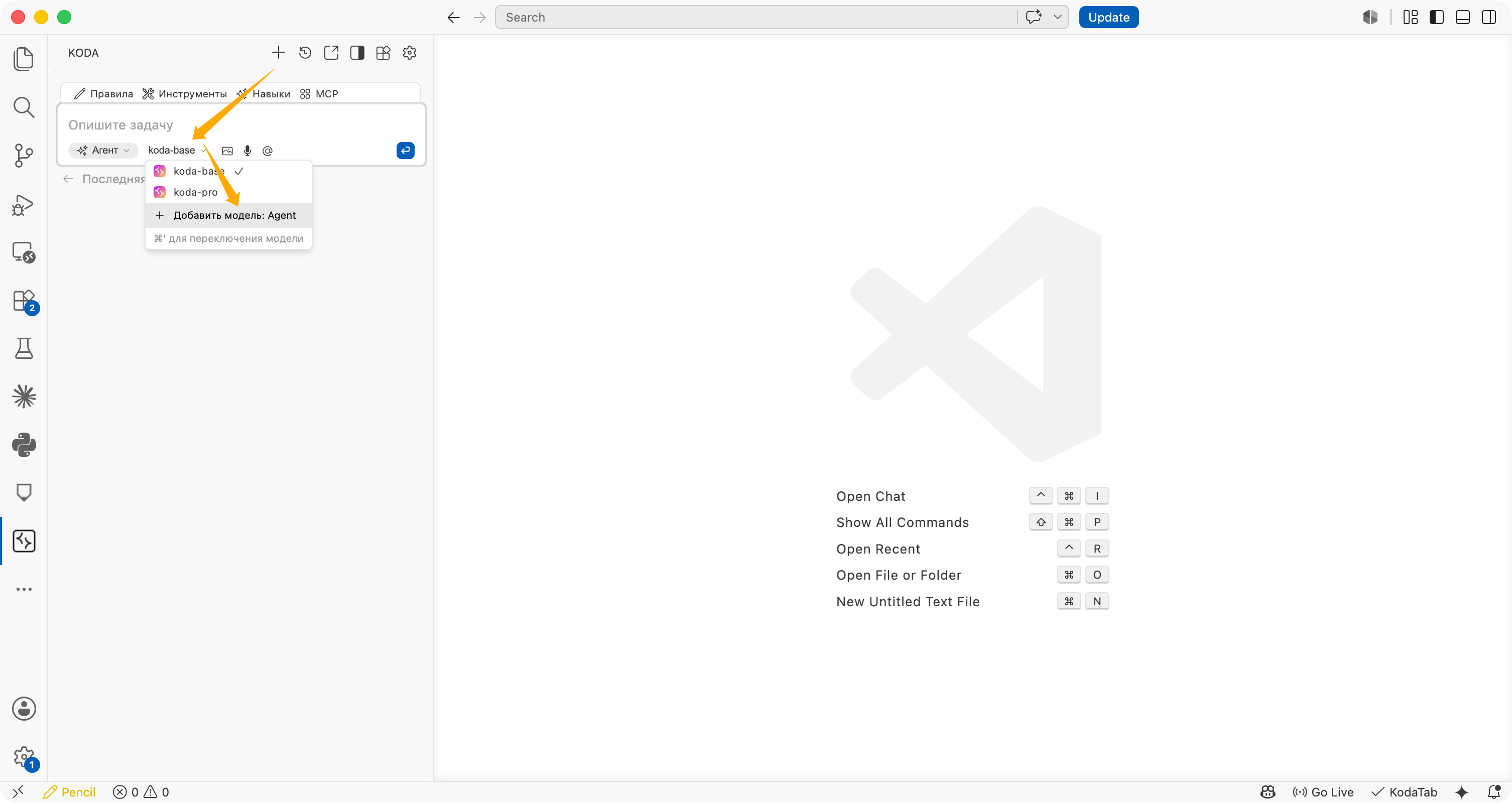
Fill in the OpenAI-compatible model settings
In the add model dialog, use these values:
Click Подключить / Connect after filling in the fields.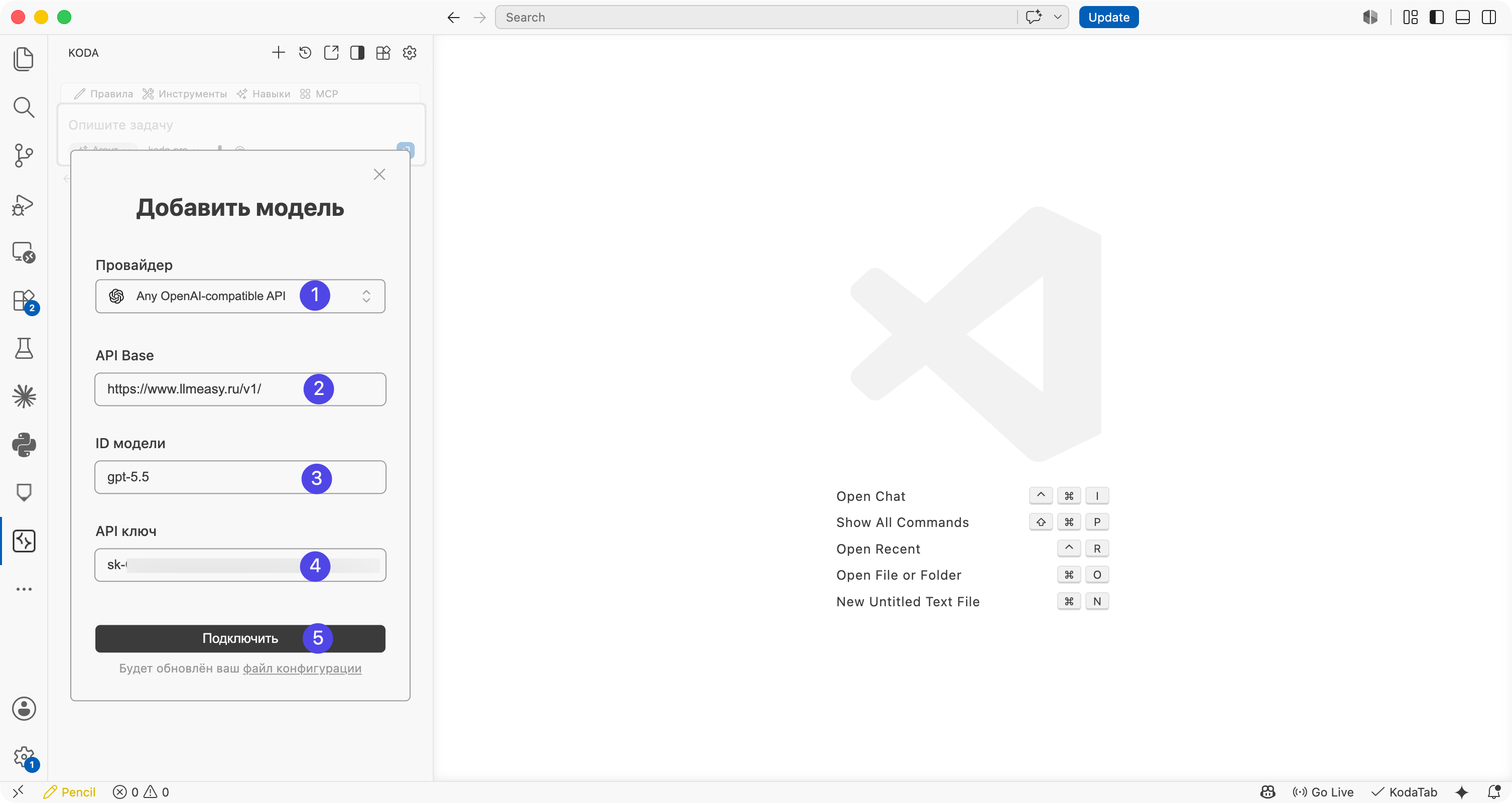
| Field | Recommended value |
|---|---|
| Provider | Any OpenAI-compatible API |
| API Base | https://www.llmeasy.ru/v1/ |
| Model ID | A GPT Key group model ID from the model plaza, for example gpt-5.5 |
| API Key | Your LLMEasy API Key |
Confirm that the model is active
After the connection succeeds, select the new model, such as
gpt-5.5, from the model selector under the Koda input box. Send a short message to confirm that it returns a response.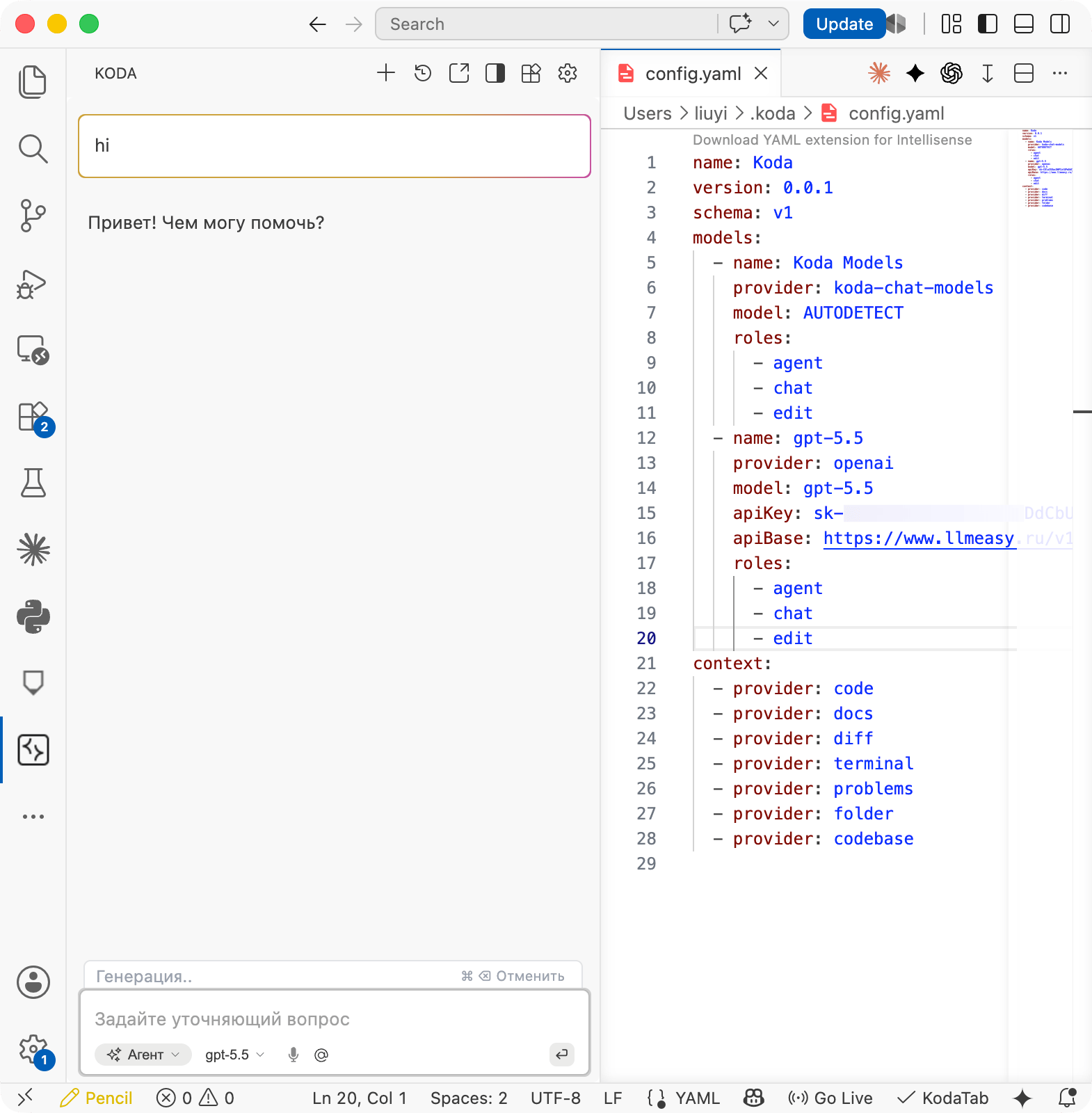
config.yaml example
Use this full structure as a reference. ReplaceYOUR_API_KEY with your LLMEasy API Key, and do not commit a real API Key to your repository.
If you use a model other than
gpt-5.5, update both name and model so they match the GPT Key group model ID from the model plaza.Troubleshooting
- If the connection fails, confirm that API Base is
https://www.llmeasy.ru/v1/and keep the trailing/. - If the model is unavailable, confirm that Model ID comes from the GPT Key group.
- If authentication fails, copy the API Key again and avoid extra spaces or line breaks.
- If
config.yamlchanges do not apply, restart VS Code or run Developer: Reload Window. - LLMEasy usually does not require an extra
User-Agentor custom headers.