

This guide configures a custom language model for GitHub Copilot Chat in VS Code. It does not replace GitHub Copilot inline code completion.
Prerequisites
- Latest VS Code installed
- GitHub Copilot / Copilot Chat installed and signed in
- LLMEasy API Key ready (register and get one)
- The API Key belongs to the GPT group
- A model ID is available, for example
gpt-5.5
Setup steps
Open model management
In the Copilot Chat input area, click the model selector, then choose Manage Models….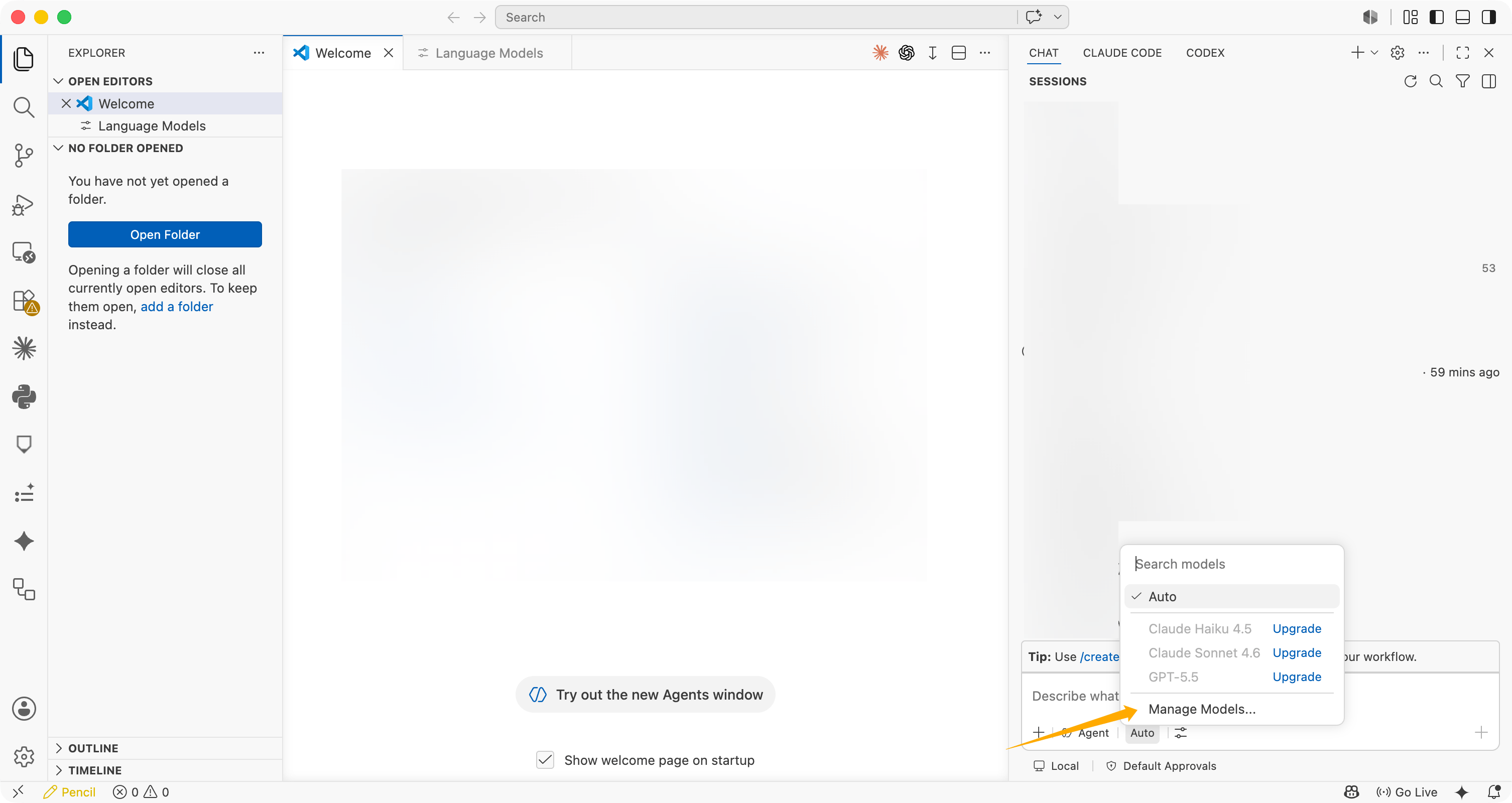
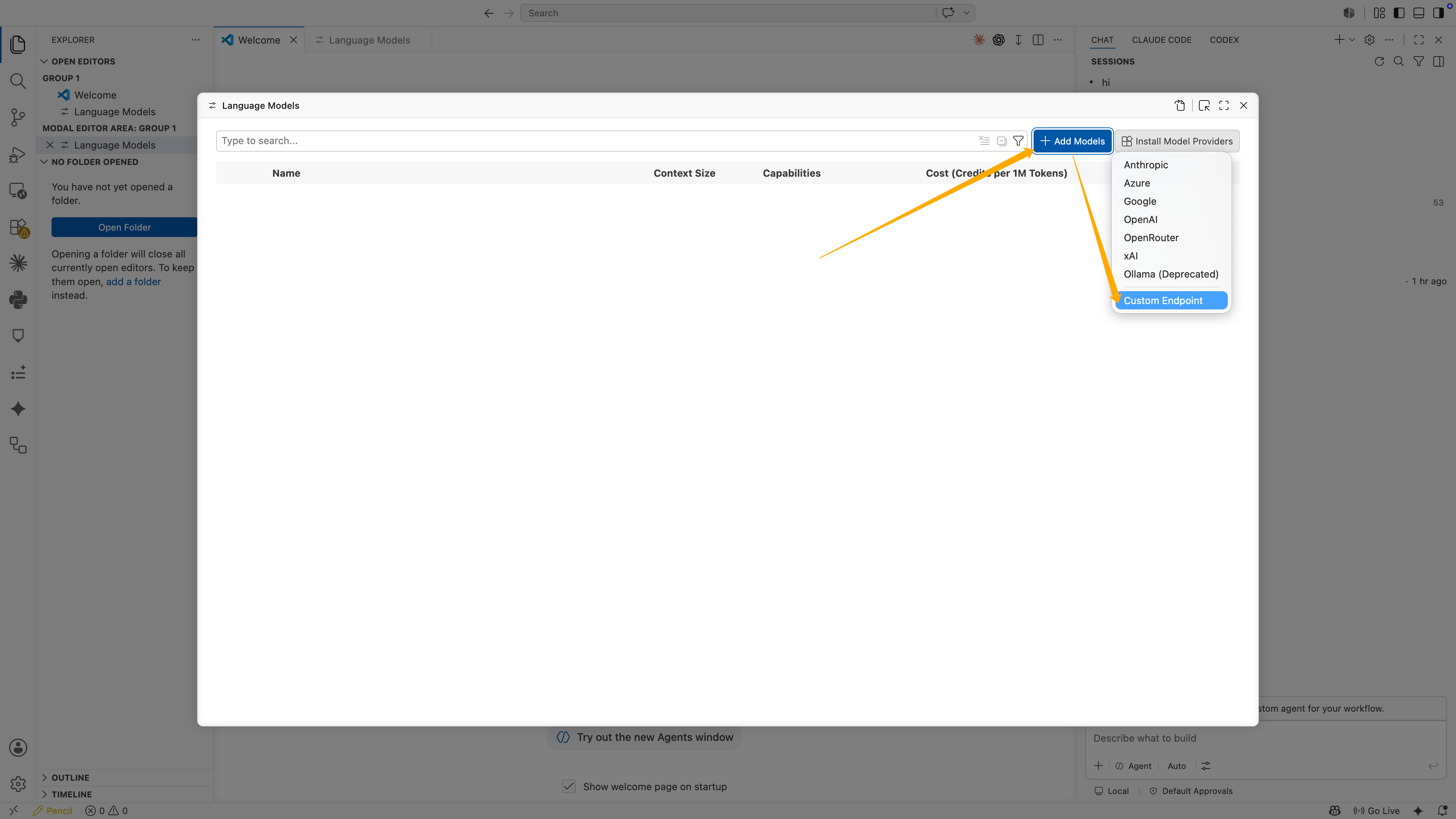
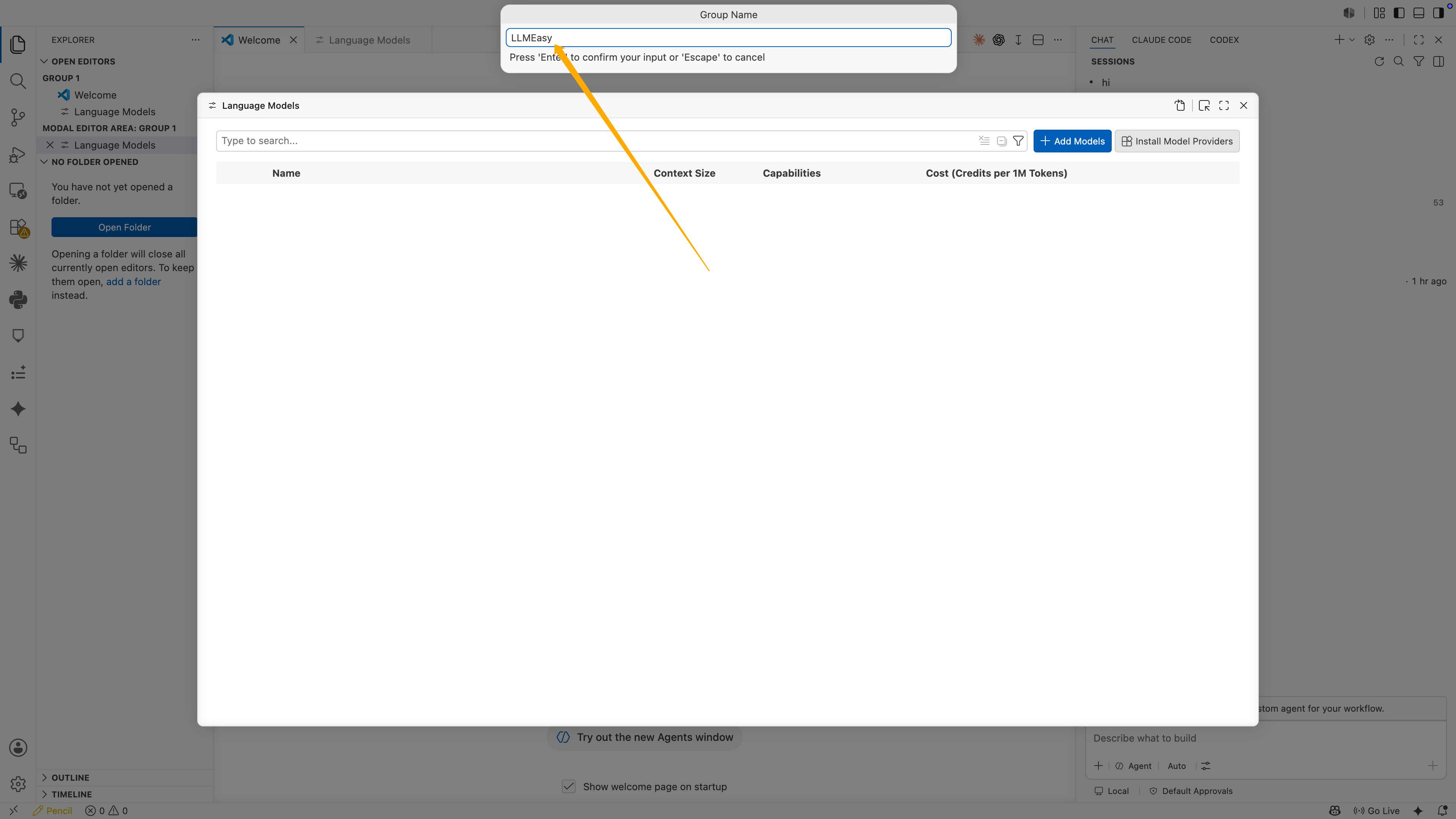
Enter the API Key
VS Code will ask for the API Key. Paste your LLMEasy API Key, then press Enter.This value will not be shown directly in the configuration file. VS Code stores it as a local secret and generates a reference like this:
Edit the JSON configuration
VS Code opens 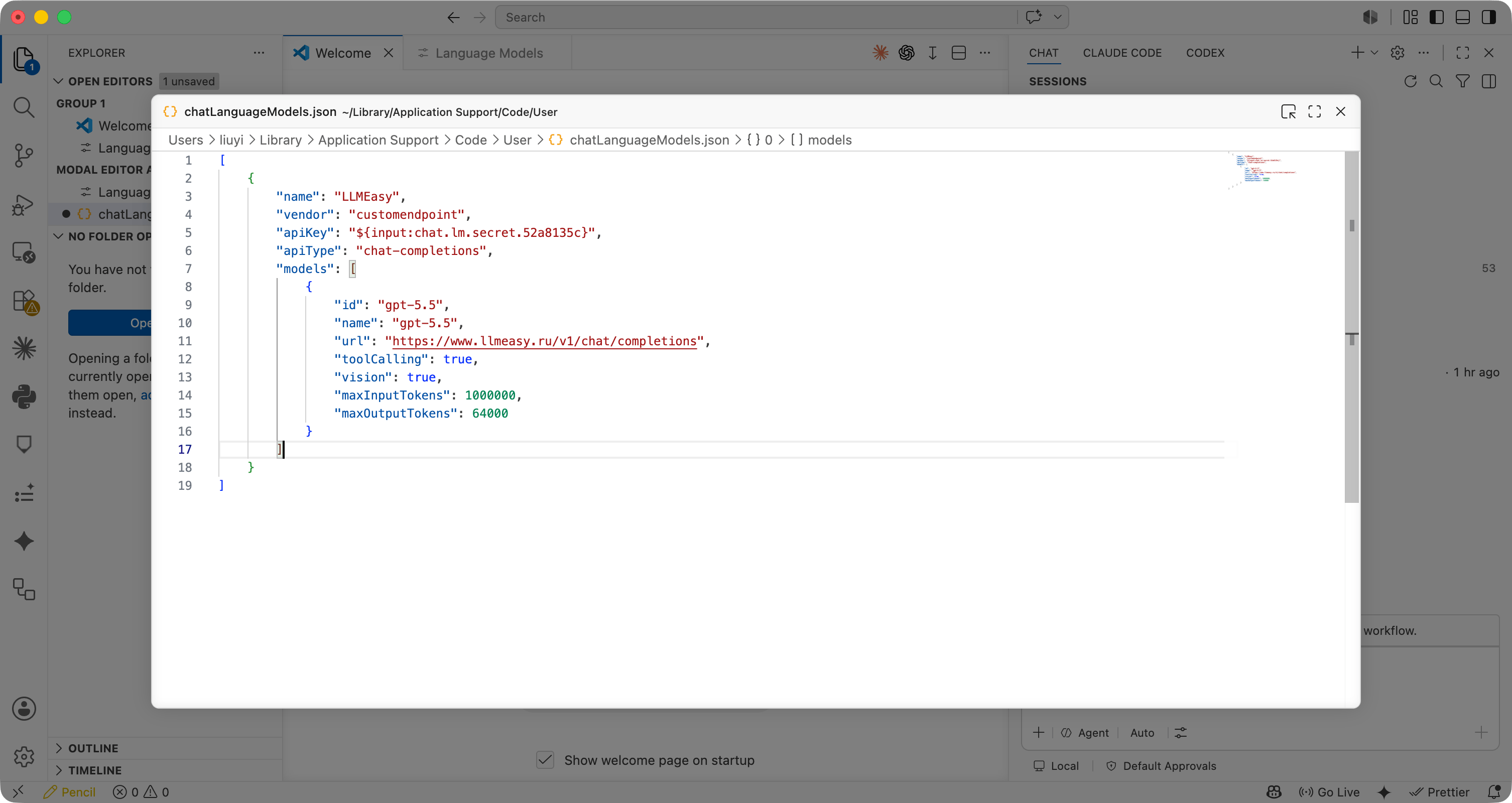
chatLanguageModels.json. Confirm or update the configuration:| Field | Recommended value |
|---|---|
name | LLMEasy |
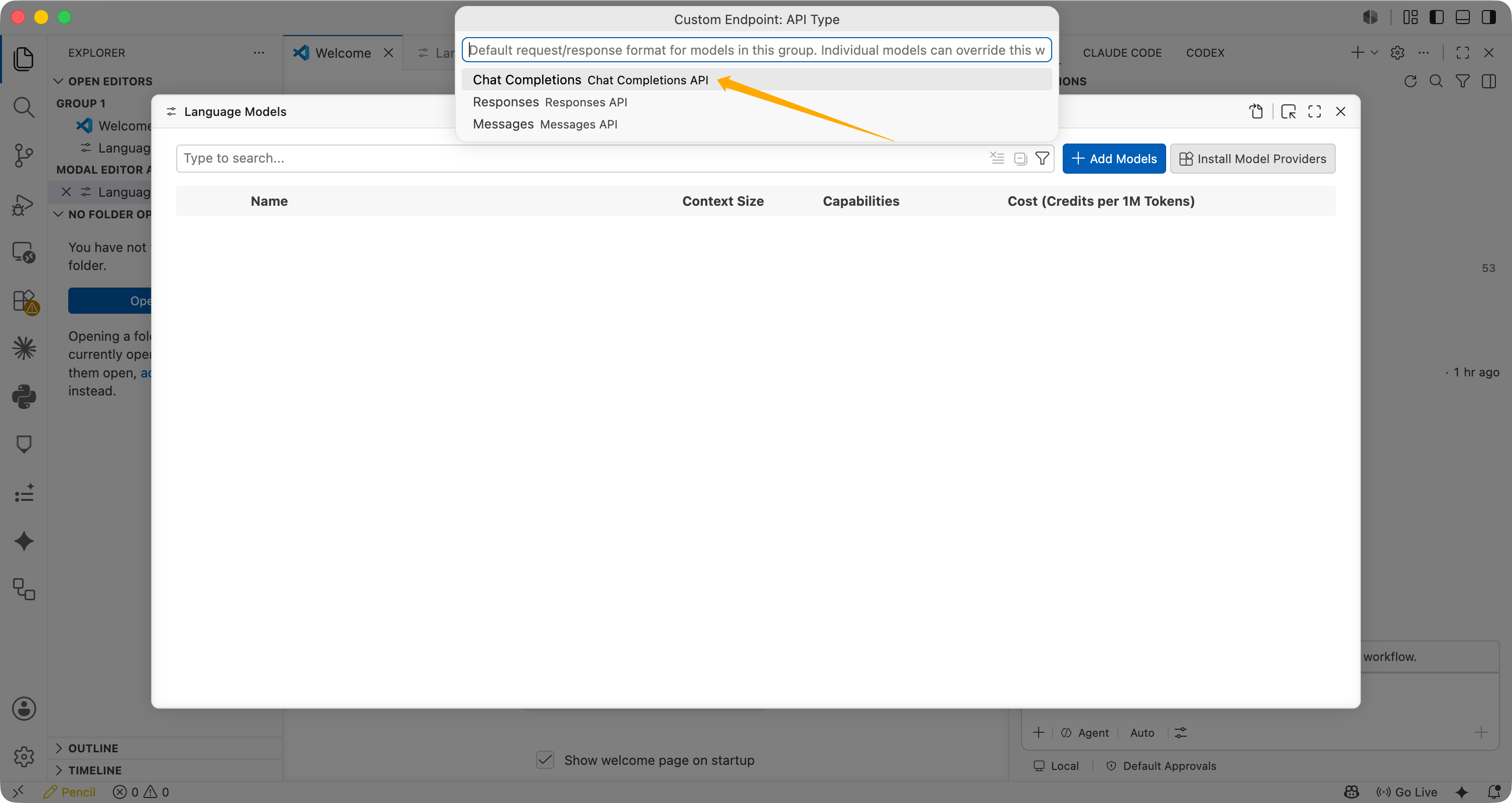
apiType | chat-completions |
id | gpt-5.5 or another GPT group model ID from the model plaza |
name | Same as the model ID |
url | https://www.llmeasy.ru/v1/chat/completions |
toolCalling | true |
vision | true |
maxInputTokens | 1000000 |
maxOutputTokens | 64000 |
Save and reload VS Code
Save After reload, return to the Copilot Chat model selector and choose
chatLanguageModels.json, then run:gpt-5.5.FAQ
Why should I enter the API Key in the prompt?
VS Code stores the API Key in local secret storage and references it in JSON with${input:chat.lm.secret...}. This is safer than writing the real API Key into the JSON file.
Why use Chat Completions?
The verified working configuration uses Chat Completions. The URL is:/v1/responses, and do not stop at /v1.
Does this replace GitHub Copilot inline completion?
No. This Custom Endpoint is mainly used for Copilot Chat language model calls. GitHub Copilot inline completion is still provided by GitHub Copilot itself.What should I do if I see Invalid token?
Check these items in order:- The API Key was entered in the VS Code prompt
- JSON keeps the
${input:chat.lm.secret...}reference - The API Key belongs to the GPT group
urlishttps://www.llmeasy.ru/v1/chat/completionsapiTypeischat-completions- The model ID is a GPT group model from the model plaza