> ## Documentation Index
> Fetch the complete documentation index at: https://docs.llmeasy.ru/llms.txt
> Use this file to discover all available pages before exploring further.
# Cursor 自定义模型接入 LLMEasy 指南
> 在 Cursor 中使用 LLMEasy,接入 GPT 分组模型。
在 Cursor 中接入 LLMEasy 时,使用 OpenAI-compatible 协议入口。外部工具统一走 GPT 分组,请从模型广场复制当前可用的模型 ID。
Cursor 仅支持订阅高级会员及以上的用户配置自定义模型。如果你的账号或当前客户端版本没有显示自定义模型、API Key 或 Base URL 选项,请先确认 Cursor 账号套餐与客户端版本。
**已知问题:** **Override OpenAI Base URL** 是全局设置。开启后会影响 Cursor 中所有已配置的 API Key,包括 Cursor 自带模型使用的 Anthropic / GPT Key。Cursor 官方社区已确认这个问题:设置 Base URL 后,所有 API Key 和模型都会受影响([社区帖](https://forum.cursor.com/t/cursor-models-fail-when-using-byok-openai-key-with-overridden-base-url-glm-4-7/147218))。
如果开启 **Override OpenAI Base URL** 后 Cursor 自带的 Claude / GPT 模型停止工作,请在不使用 LLMEasy 时关闭 **Override OpenAI Base URL**。Cursor 目前不支持按模型设置不同 Base URL,相关能力仍在功能请求中([feature request](https://forum.cursor.com/t/custom-base-urls-for-each-custom-model/147219))。
## 前置条件
* 已安装 Cursor(前往 [Cursor 官网](https://www.cursor.com) 下载)
* 已获取 LLMEasy API Key(注册并获取)
* API Key 属于 **GPT 分组**,并且你准备选择同一分组下的模型
## 配置步骤
在 Cursor 中,点击左下角 **Settings**,进入设置界面后选择 **Models**。向下找到 **API Keys** 区域。
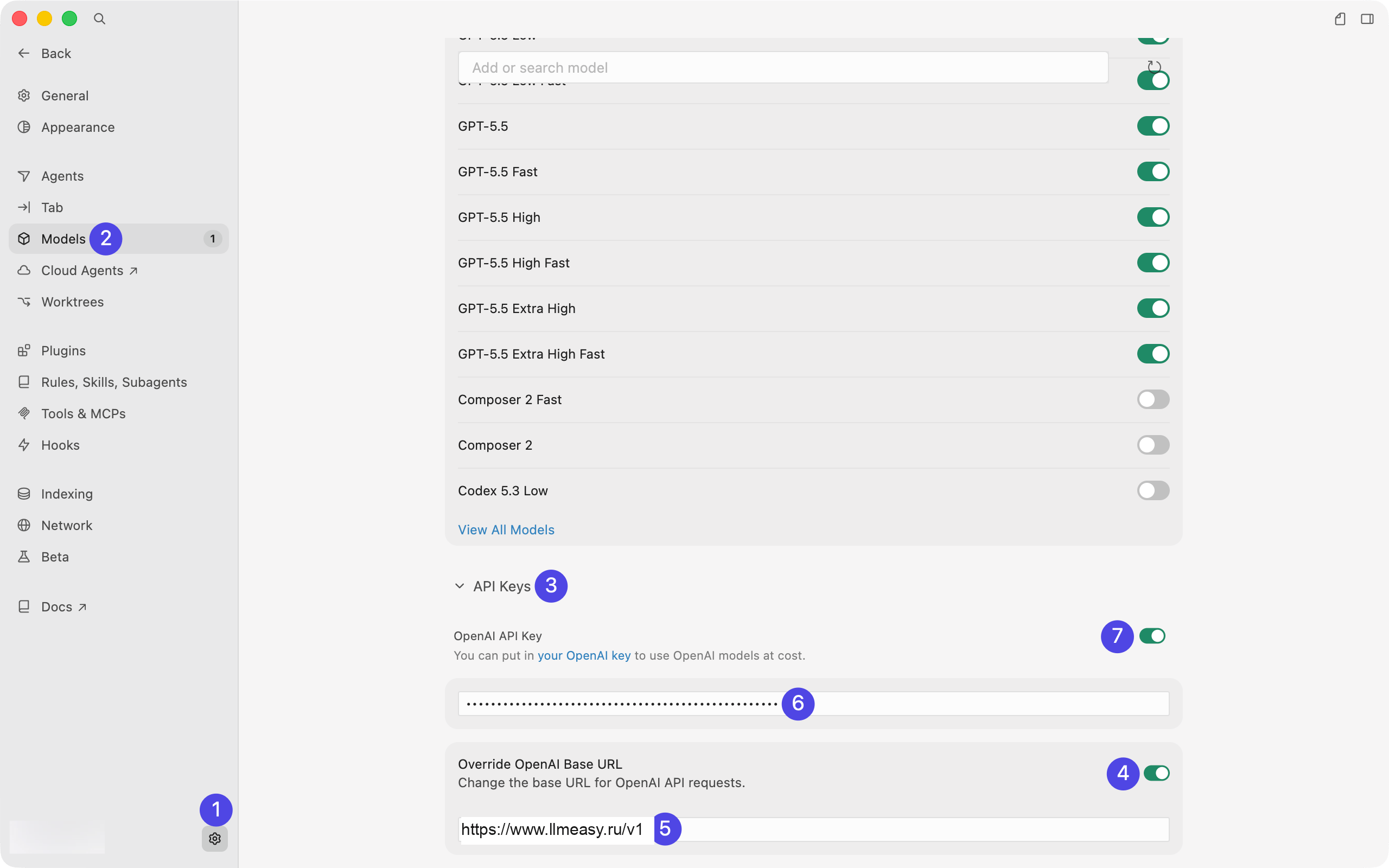 在 **API Keys** 区域按下面顺序配置:
1. 打开 **Override OpenAI Base URL**
2. 在 Base URL 输入框中填写 `https://www.llmeasy.ru/v1`
3. 在 **OpenAI API Key** 中填写你的 LLMEasy API Key
4. 填完 URL 和 Key 后,再打开 **OpenAI API Key** 开关
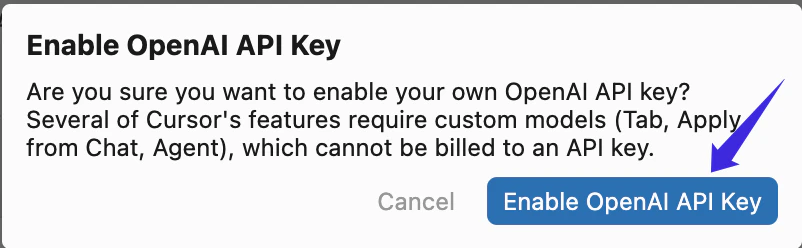
先填写 Key,再打开开关。这样 Cursor 会弹出认证确认窗口。
在确认窗口中点击 **Enable OpenAI API Key**。
在 **API Keys** 区域按下面顺序配置:
1. 打开 **Override OpenAI Base URL**
2. 在 Base URL 输入框中填写 `https://www.llmeasy.ru/v1`
3. 在 **OpenAI API Key** 中填写你的 LLMEasy API Key
4. 填完 URL 和 Key 后,再打开 **OpenAI API Key** 开关
先填写 Key,再打开开关。这样 Cursor 会弹出认证确认窗口。
在确认窗口中点击 **Enable OpenAI API Key**。
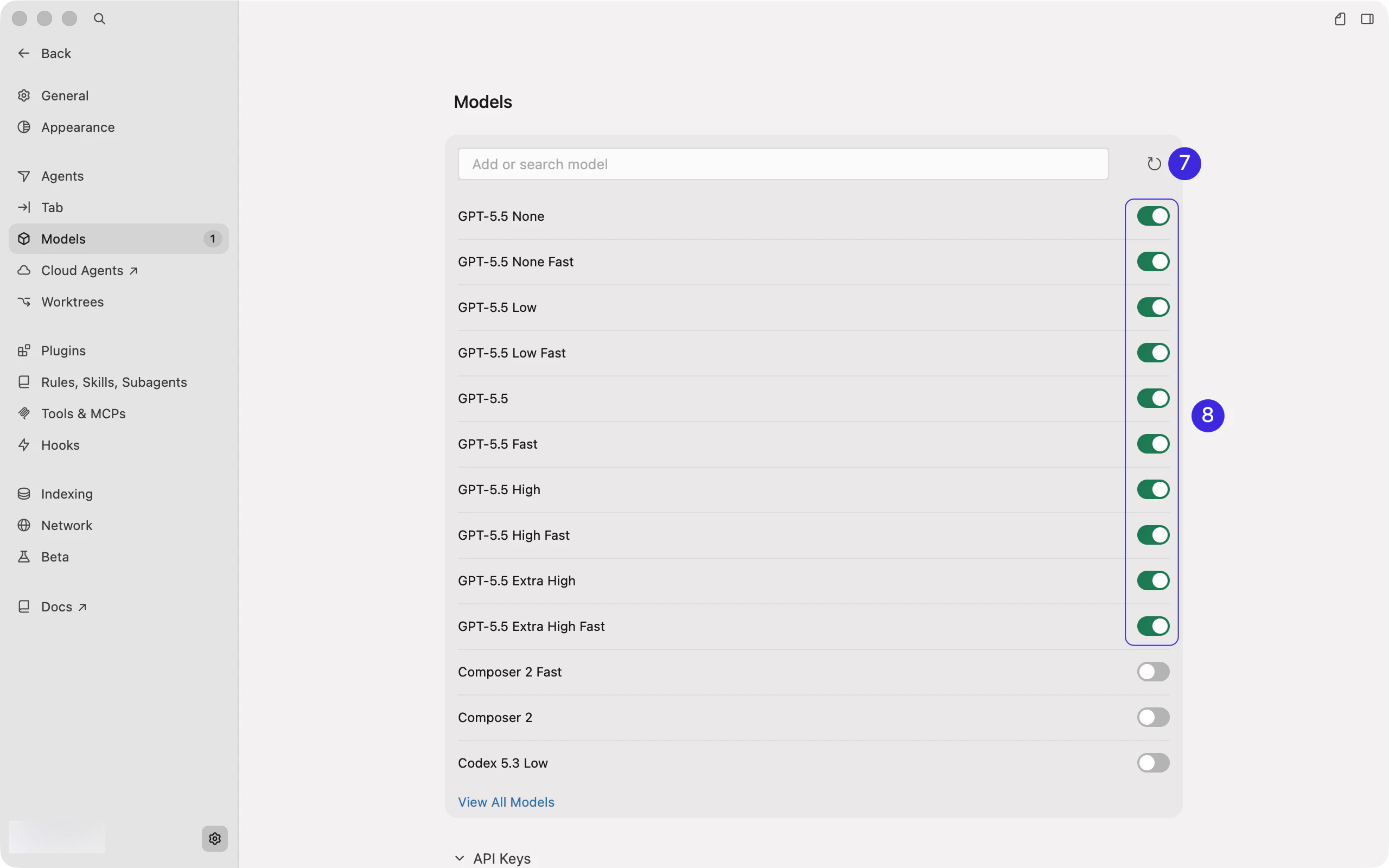
 回到 **Models** 区域后,一定要先点击右侧的刷新按钮。等待模型列表刷新完成后,再选择模型。
只能选择当前 LLMEasy API Key 对应分组下的模型。使用 GPT 分组 API Key 时,请选择模型广场里 **GPT 分组**下的模型 ID,并打开对应模型右侧的开关。
回到 **Models** 区域后,一定要先点击右侧的刷新按钮。等待模型列表刷新完成后,再选择模型。
只能选择当前 LLMEasy API Key 对应分组下的模型。使用 GPT 分组 API Key 时,请选择模型广场里 **GPT 分组**下的模型 ID,并打开对应模型右侧的开关。
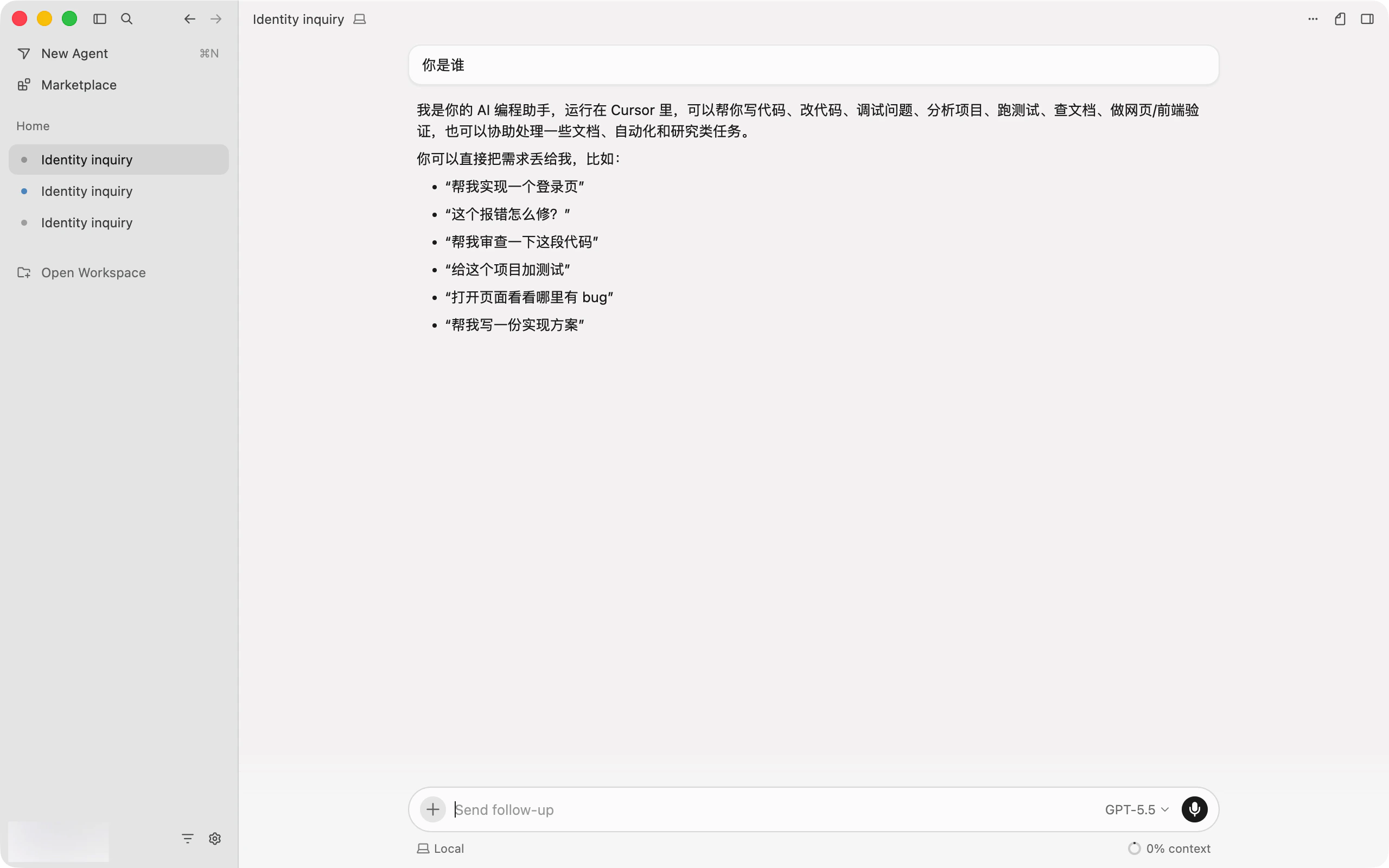
 配置完成后回到 Cursor 对话界面,点击输入框下方的模型选择器。如果 **Auto** 处于开启状态,请先关闭 **Auto**。
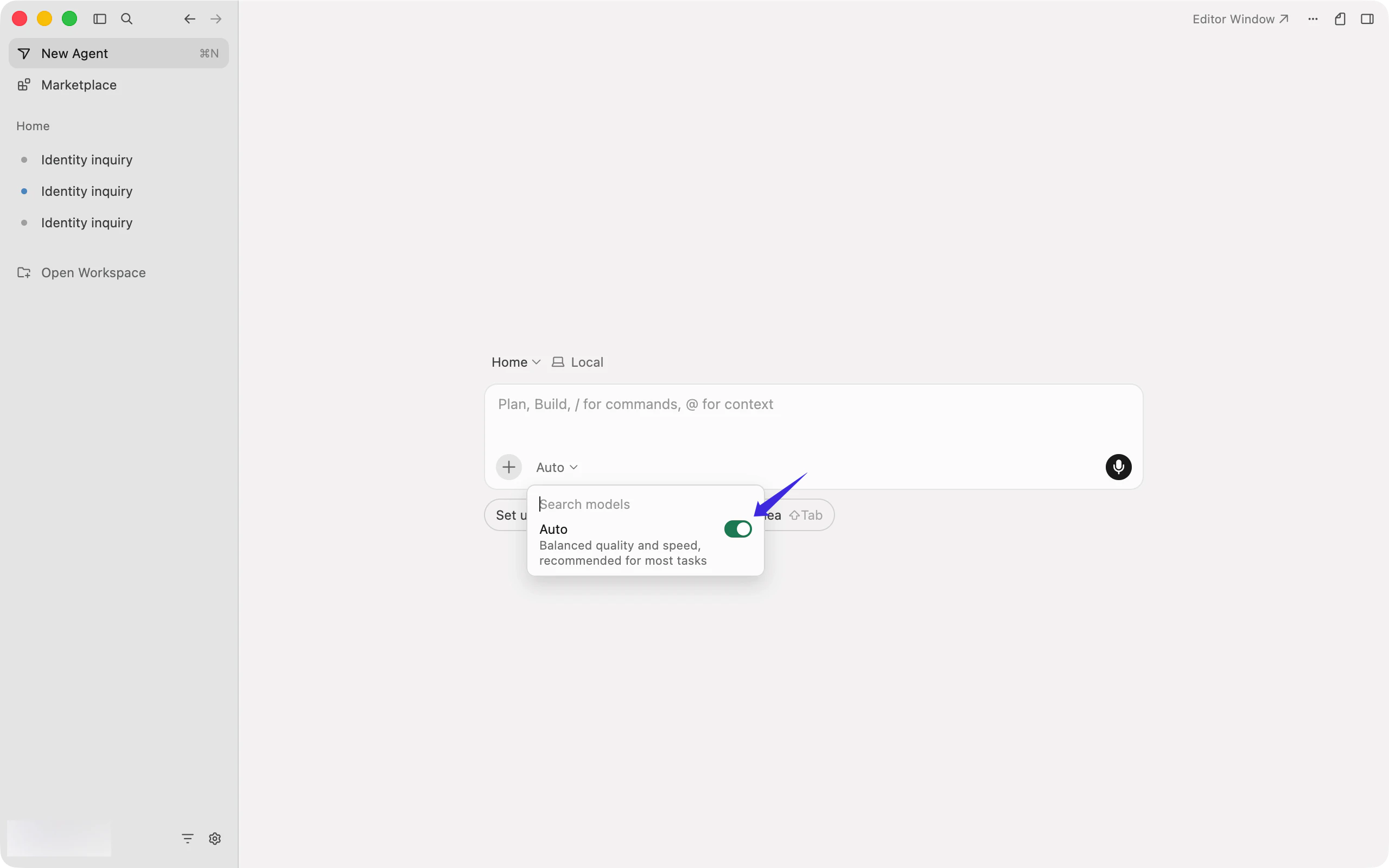 在模型选择器中选择刚启用的 GPT 分组模型,然后开始对话。
 ## 相关 FAQ
* [Cursor 如何配置自定义 OpenAI API Key 和 Base URL?](/zh/faq/cursor/custom-openai-api)
* [Cursor Rules、AGENTS.md 和 .cursorignore 是什么?](/zh/faq/cursor/rules-agents-cursorignore)
* [Cursor 如何配置 MCP?](/zh/faq/cursor/mcp)
* [Claude Code 和 Cursor 哪个更适合本地开发?](/zh/faq/claude-code/claude-code-vs-cursor)
* [OpenAI-compatible API 和 Anthropic-compatible API 有什么区别?](/zh/faq/concepts/openai-compatible-vs-anthropic-compatible)
## 注意事项
* 不要把 Claude 分组模型 ID 填到 Codex / OpenAI-compatible 流程中
* 不要继续填写固定 Claude 模型名;请使用模型广场中当前可用的 GPT 分组模型 ID
## 相关 FAQ
* [Cursor 如何配置自定义 OpenAI API Key 和 Base URL?](/zh/faq/cursor/custom-openai-api)
* [Cursor Rules、AGENTS.md 和 .cursorignore 是什么?](/zh/faq/cursor/rules-agents-cursorignore)
* [Cursor 如何配置 MCP?](/zh/faq/cursor/mcp)
* [Claude Code 和 Cursor 哪个更适合本地开发?](/zh/faq/claude-code/claude-code-vs-cursor)
* [OpenAI-compatible API 和 Anthropic-compatible API 有什么区别?](/zh/faq/concepts/openai-compatible-vs-anthropic-compatible)
## 注意事项
* 不要把 Claude 分组模型 ID 填到 Codex / OpenAI-compatible 流程中
* 不要继续填写固定 Claude 模型名;请使用模型广场中当前可用的 GPT 分组模型 ID