> ## Documentation Index
> Fetch the complete documentation index at: https://docs.llmeasy.ru/llms.txt
> Use this file to discover all available pages before exploring further.
# How can I use Codex and other third-party models in Claude Desktop?
> Use a CC Switch local route to run GPT Key group models in Claude Desktop.
Recent Claude Desktop versions changed how third-party API gateways are configured. In Gateway mode, Claude Desktop validates model IDs more strictly, so non-official model IDs such as GPT, DeepSeek, or GLM can be blocked.
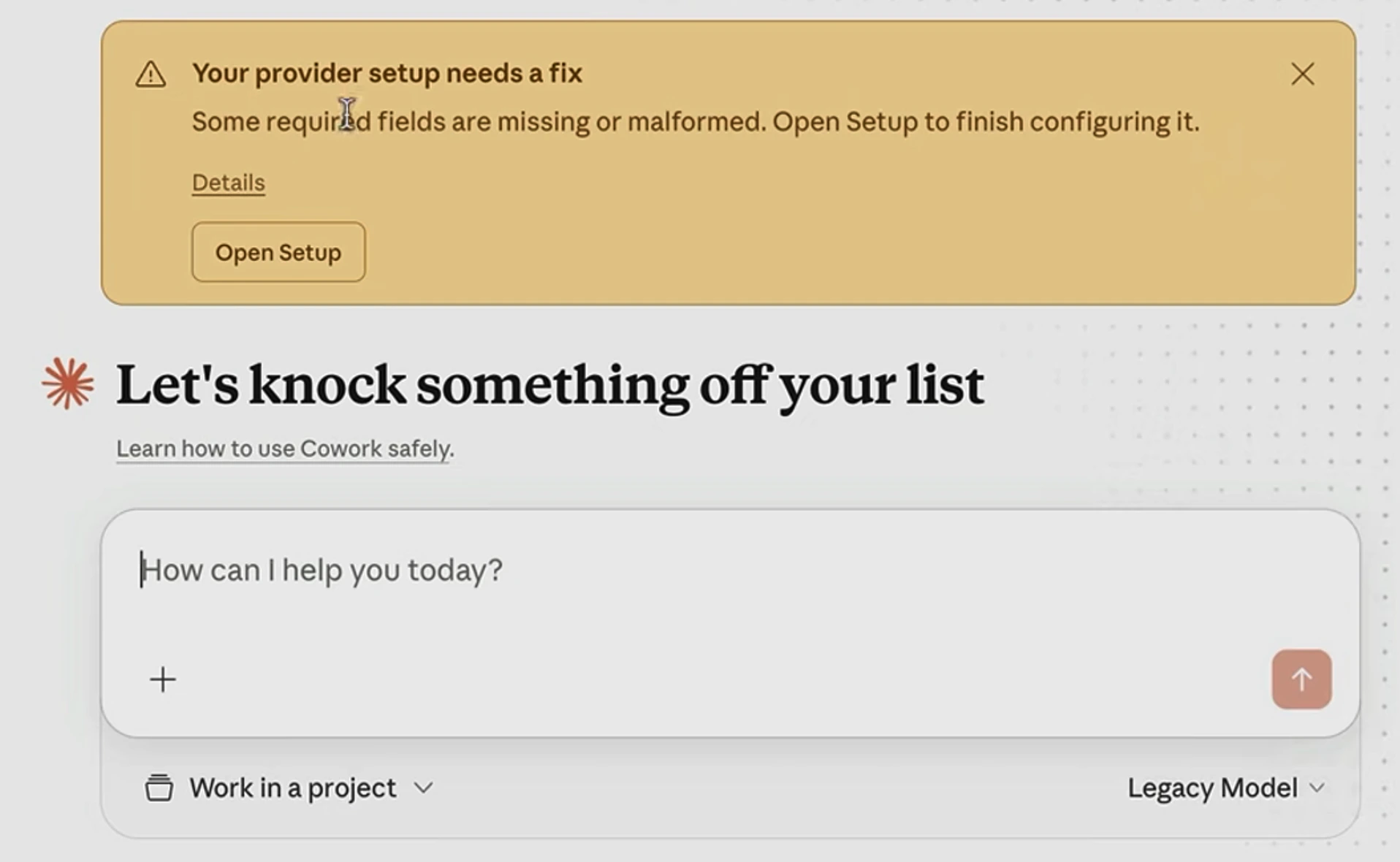
A common symptom is this warning at the top of the page: `Your provider setup needs a fix Some required fields are missing or malformed. Open Setup to finish configuring it.` At the same time, the third-party model selector in the lower-left area is empty, and Claude Desktop only shows a **Legacy Model** state.
 If you want to keep using Codex or other third-party models in Claude Desktop, route the requests through CC Switch: configure LLMEasy under **Claude Code** in CC Switch, then enter the CC Switch local service address in Claude Desktop Gateway.
This path is for API keys from the **GPT Key group**. Do not enter `https://www.llmeasy.ru/v1` directly in Claude Desktop Gateway.
## Setup steps
Download the latest Claude Desktop app from the official link:
[Download Claude for Mac](https://claude.ai/api/desktop/darwin/universal/dmg/latest/redirect)
After installation, do not sign in to a Claude account. Continue to the next step and enable developer mode.
Open Claude Desktop, then choose **Help** → **Troubleshooting** → **Enable Developer Mode** from the macOS menu bar.
If you want to keep using Codex or other third-party models in Claude Desktop, route the requests through CC Switch: configure LLMEasy under **Claude Code** in CC Switch, then enter the CC Switch local service address in Claude Desktop Gateway.
This path is for API keys from the **GPT Key group**. Do not enter `https://www.llmeasy.ru/v1` directly in Claude Desktop Gateway.
## Setup steps
Download the latest Claude Desktop app from the official link:
[Download Claude for Mac](https://claude.ai/api/desktop/darwin/universal/dmg/latest/redirect)
After installation, do not sign in to a Claude account. Continue to the next step and enable developer mode.
Open Claude Desktop, then choose **Help** → **Troubleshooting** → **Enable Developer Mode** from the macOS menu bar.
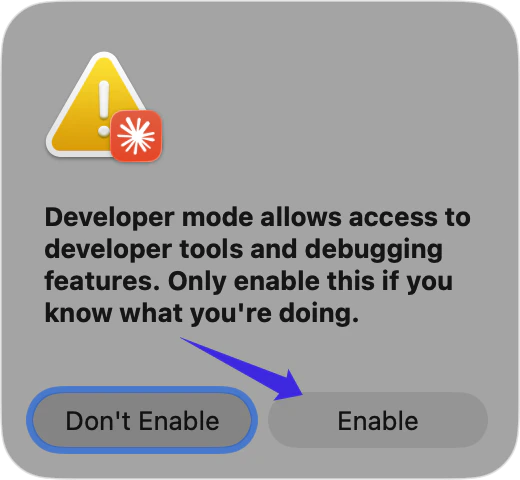
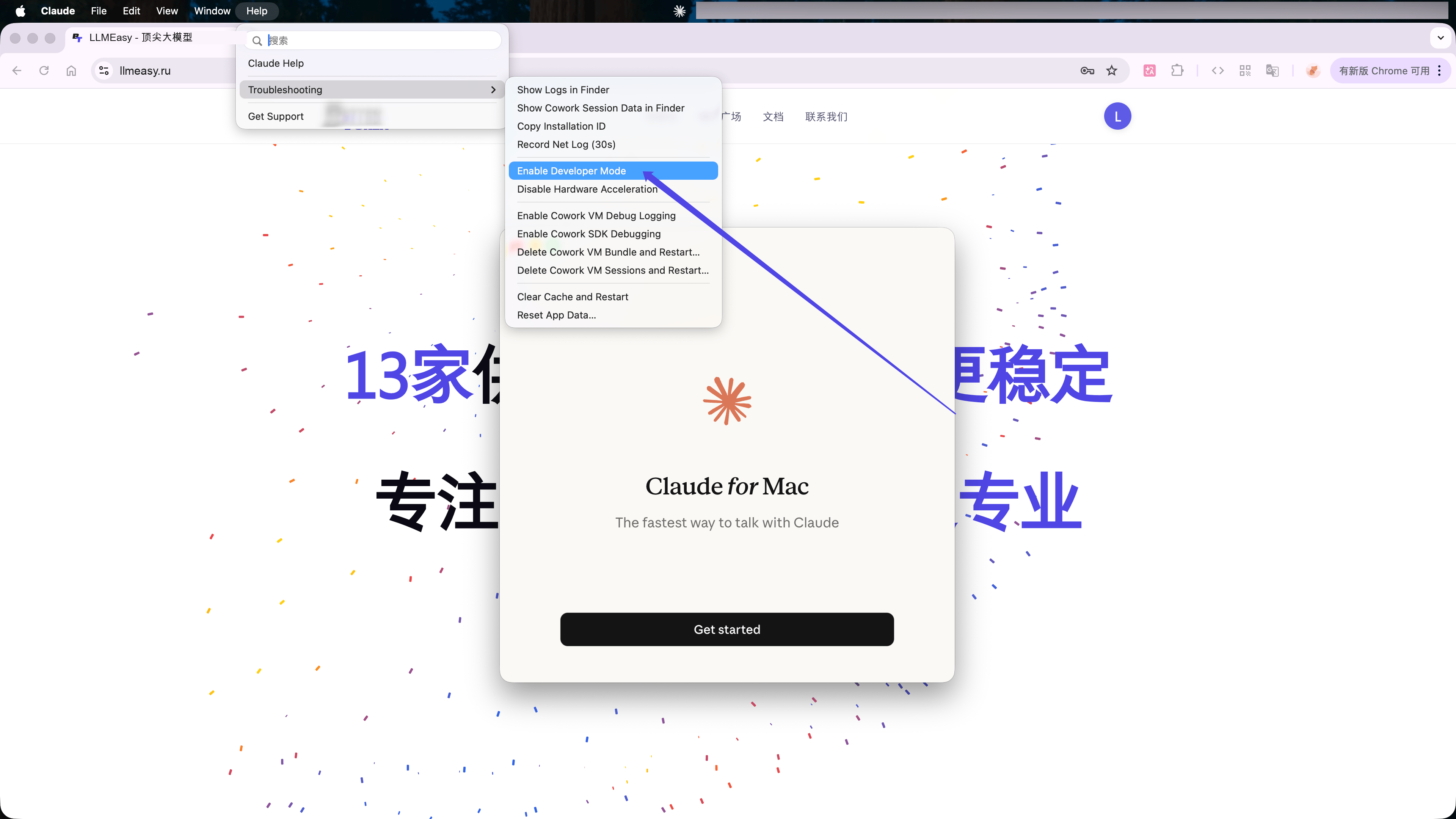 In the confirmation window, click **Enable**, then restart Claude Desktop.
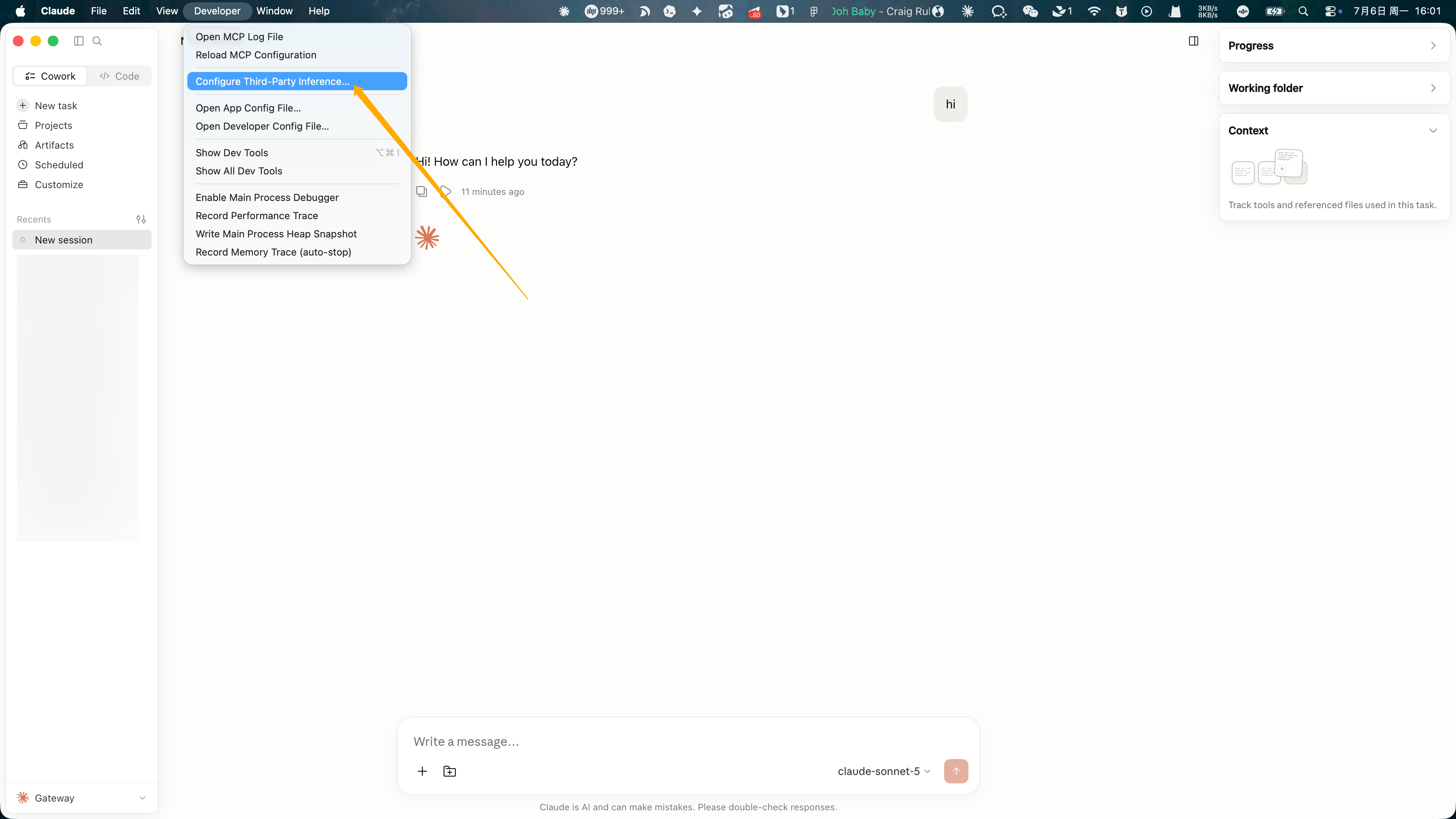
 After restarting, the macOS menu bar shows a **Developer** menu.
Choose **Developer** → **Configure Third-Party Inference...**.
After restarting, the macOS menu bar shows a **Developer** menu.
Choose **Developer** → **Configure Third-Party Inference...**.
 Open CC Switch, switch to **Claude Code**, and click **Add Provider**.
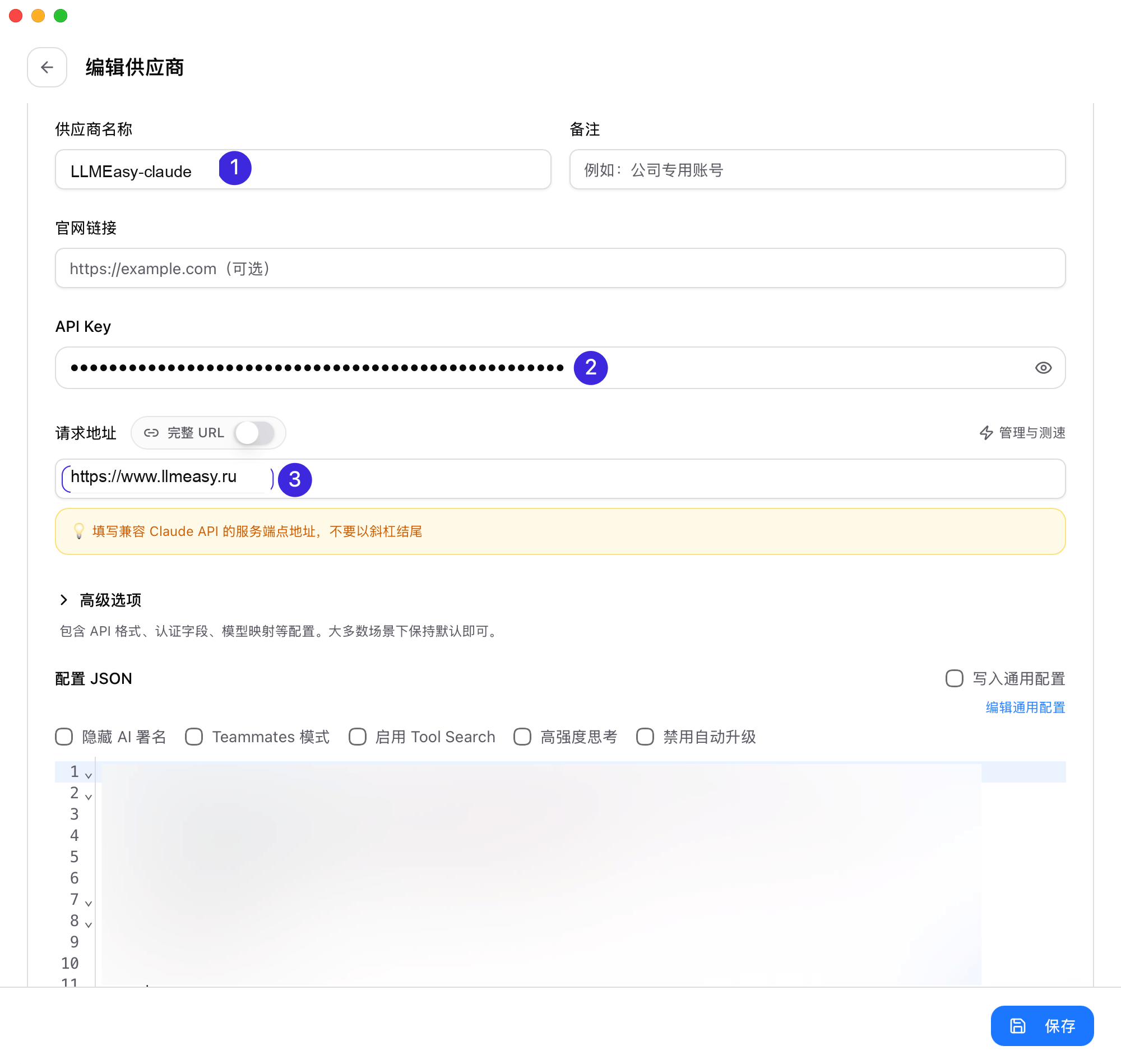
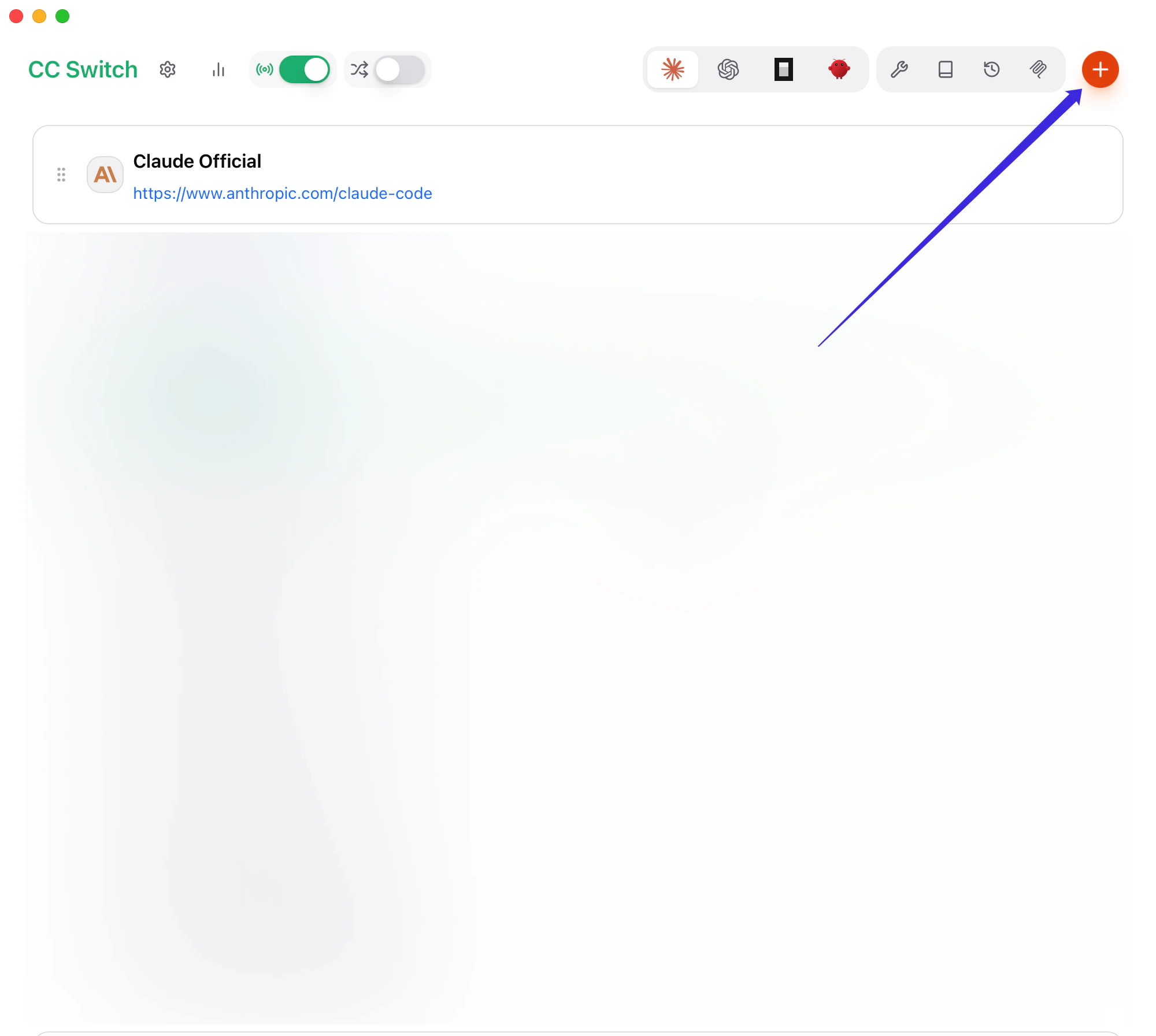 * **Provider Name**: `LLMEasy`
* **Base URL**: `https://www.llmeasy.ru`
* **API Key**: your LLMEasy API Key
The screenshot labels map to:
1. **Provider Name**
2. **API Key**
3. **Base URL**
* **Provider Name**: `LLMEasy`
* **Base URL**: `https://www.llmeasy.ru`
* **API Key**: your LLMEasy API Key
The screenshot labels map to:
1. **Provider Name**
2. **API Key**
3. **Base URL**
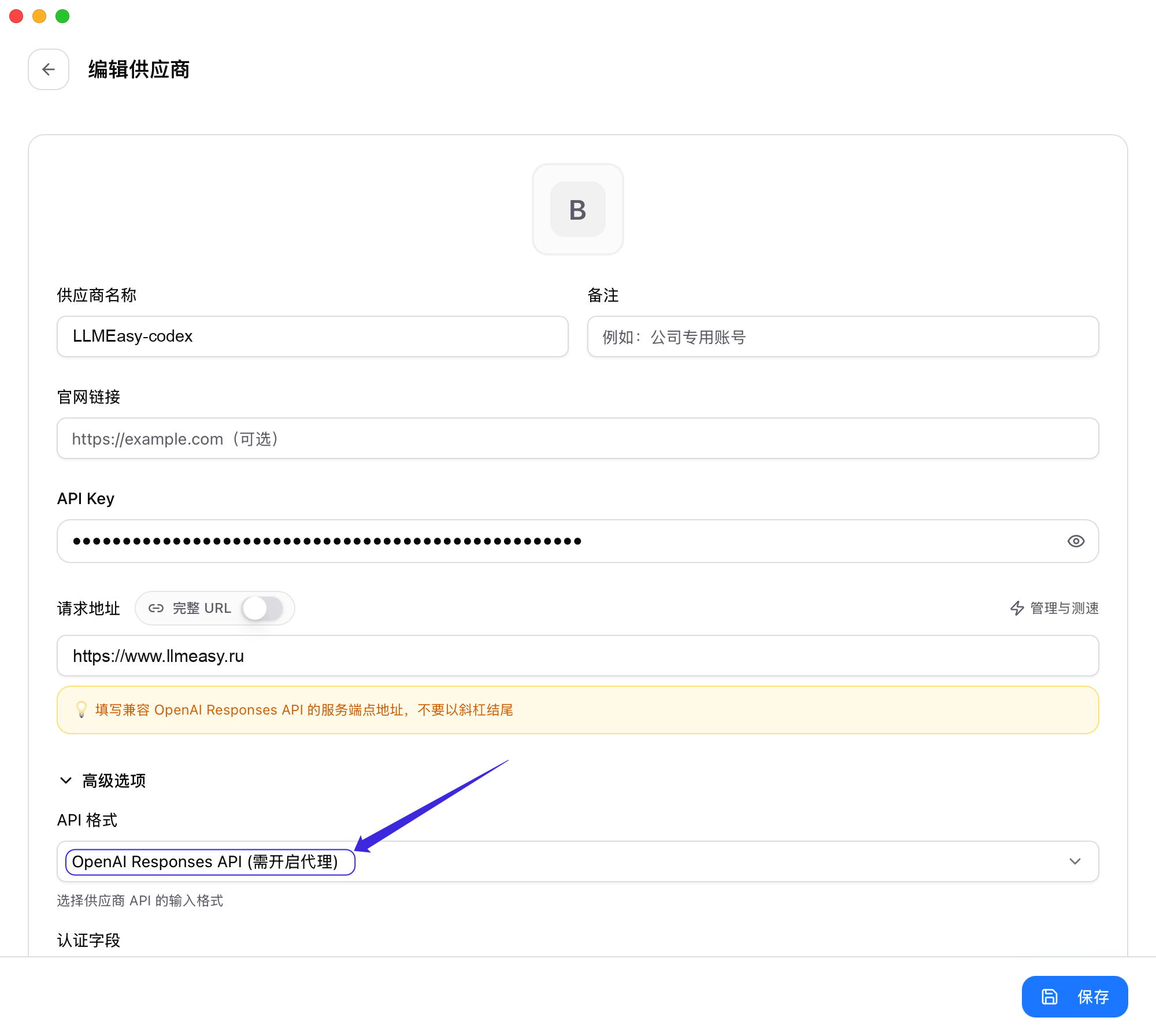
 Open **Advanced Options** and set **API Format** to **OpenAI Responses API**.
 In **Model Mapping**, click **Fetch Model List**. Explicitly select dropdown values for **Primary Model**, **Thinking Model**, **Haiku Default Model**, **Sonnet Default Model**, and **Opus Default Model**.
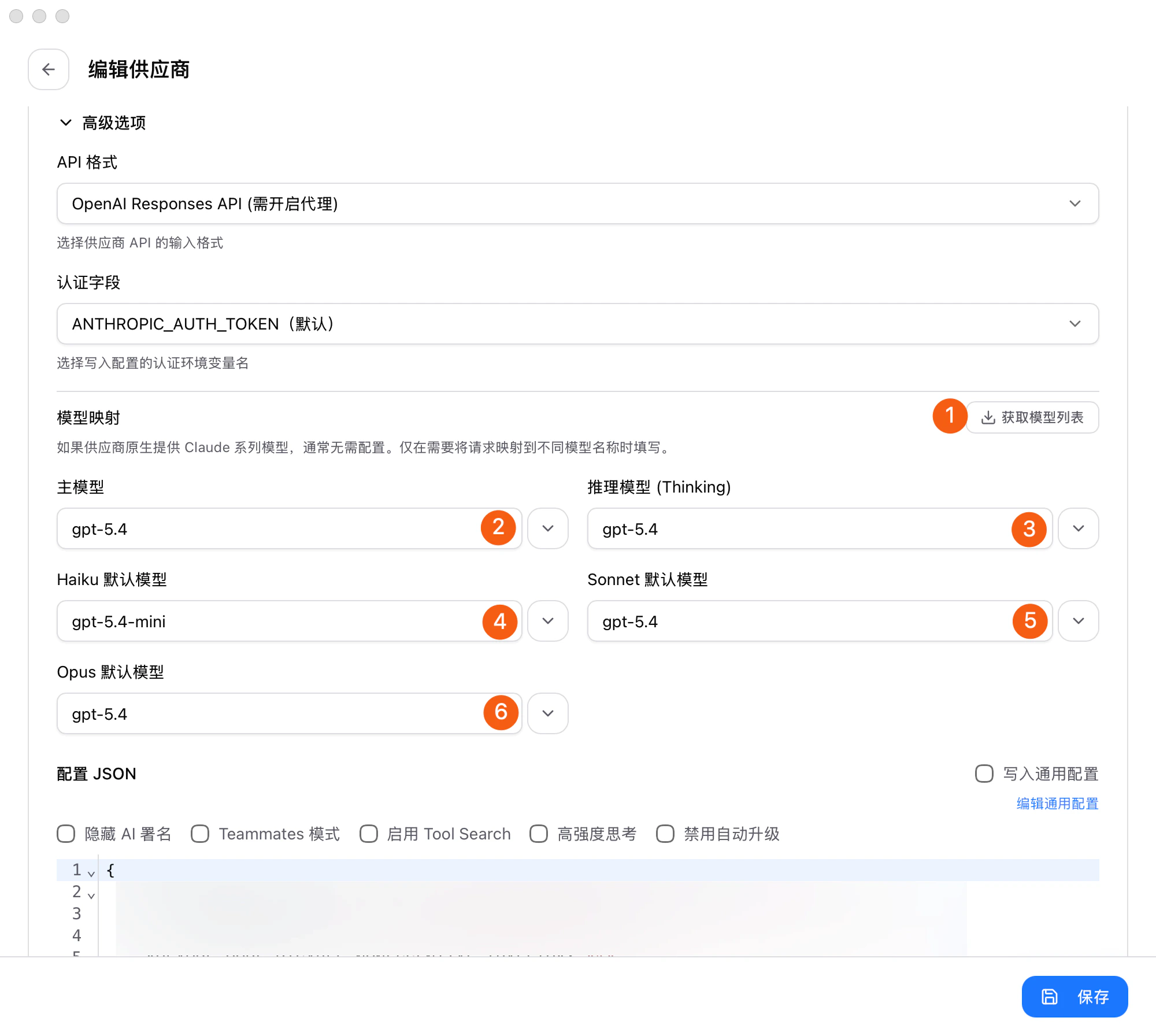 Use model IDs from the current **GPT Key group** models in the LLMEasy model plaza.
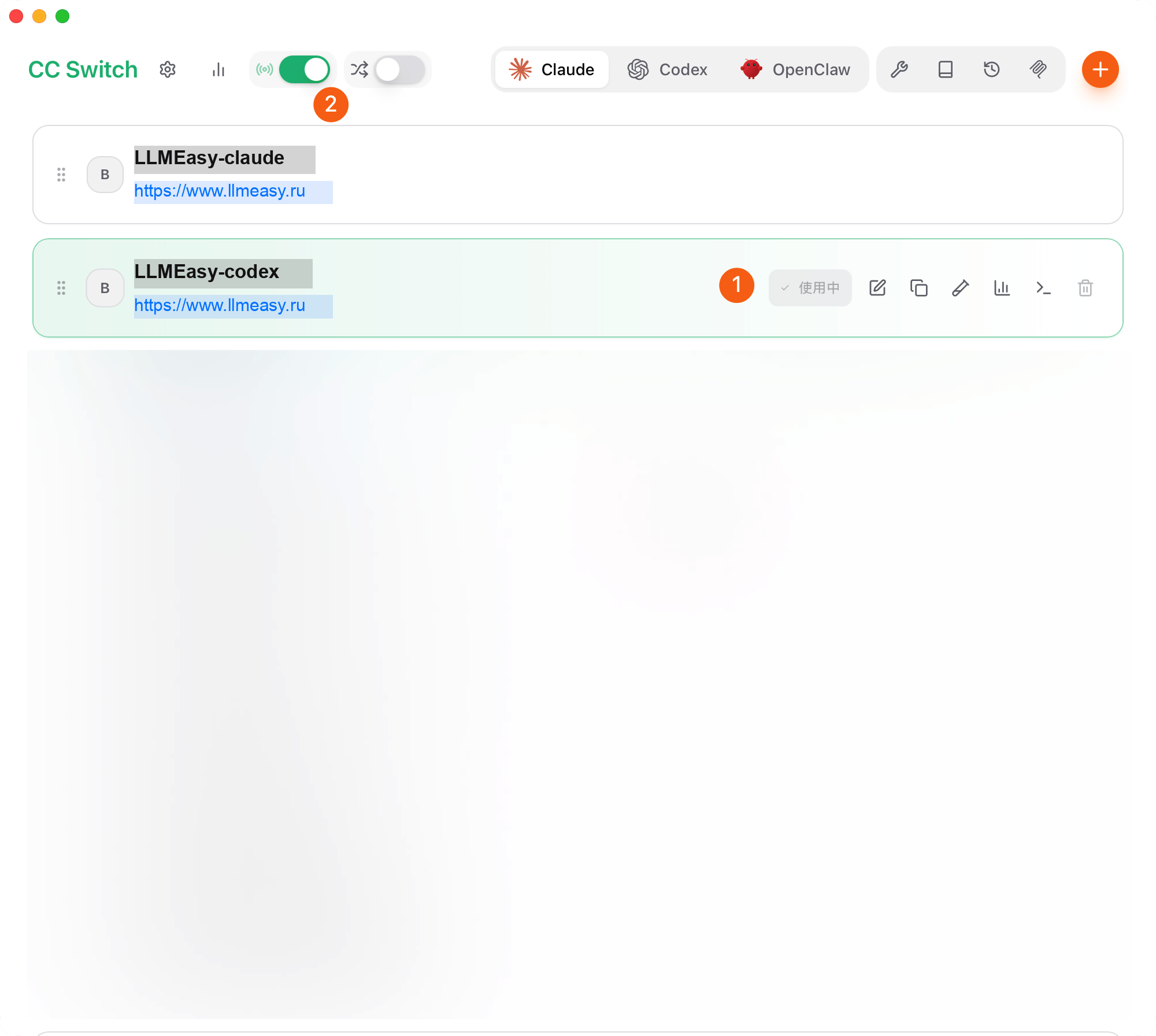
After saving, return to the provider list:
1. Set the LLMEasy provider you just saved as **In use**
2. Enable the **CC Switch proxy** from the top-left corner
Use model IDs from the current **GPT Key group** models in the LLMEasy model plaza.
After saving, return to the provider list:
1. Set the LLMEasy provider you just saved as **In use**
2. Enable the **CC Switch proxy** from the top-left corner
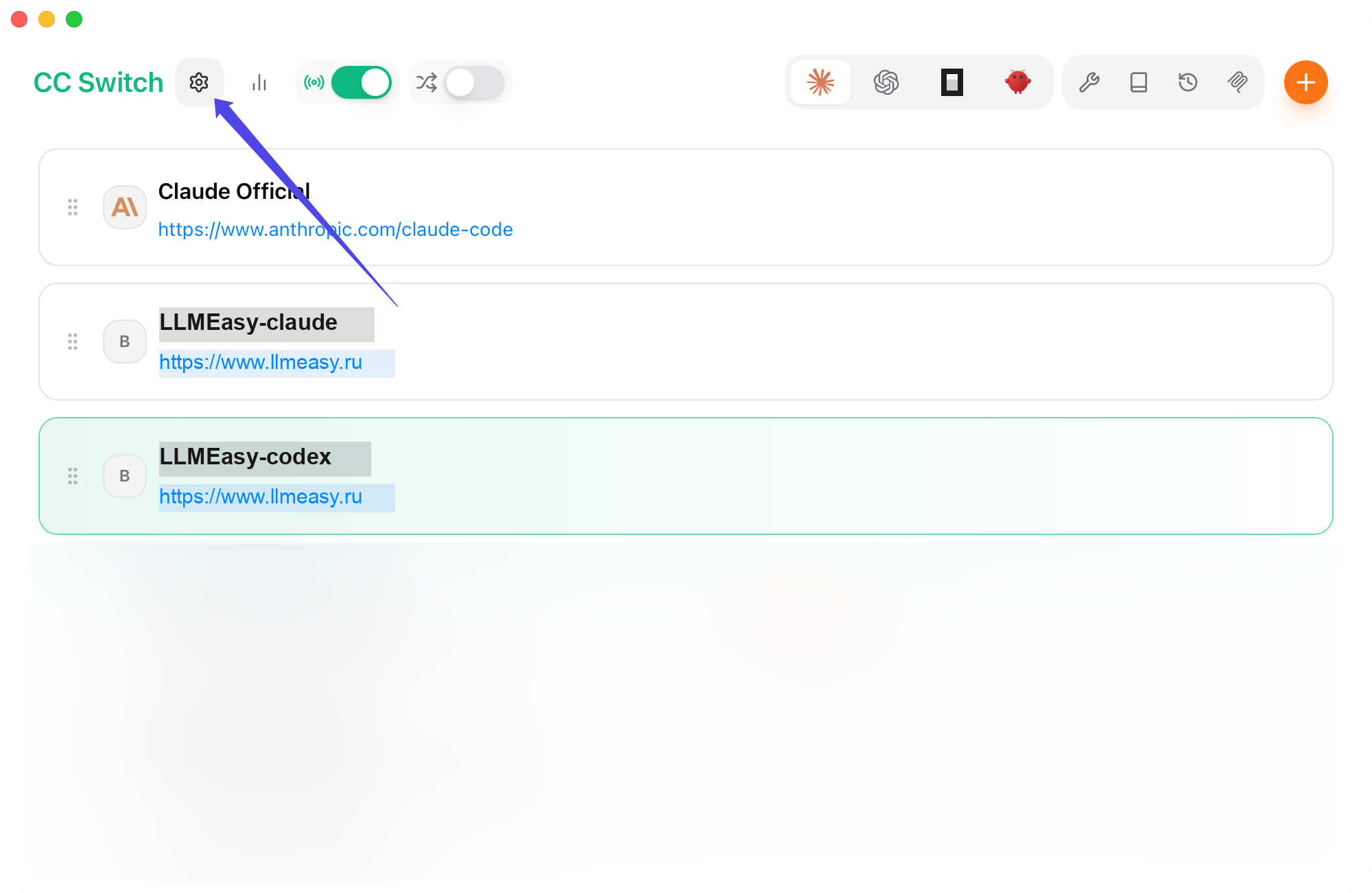
 Return to the CC Switch home screen, then click **Settings** in the top-left corner.
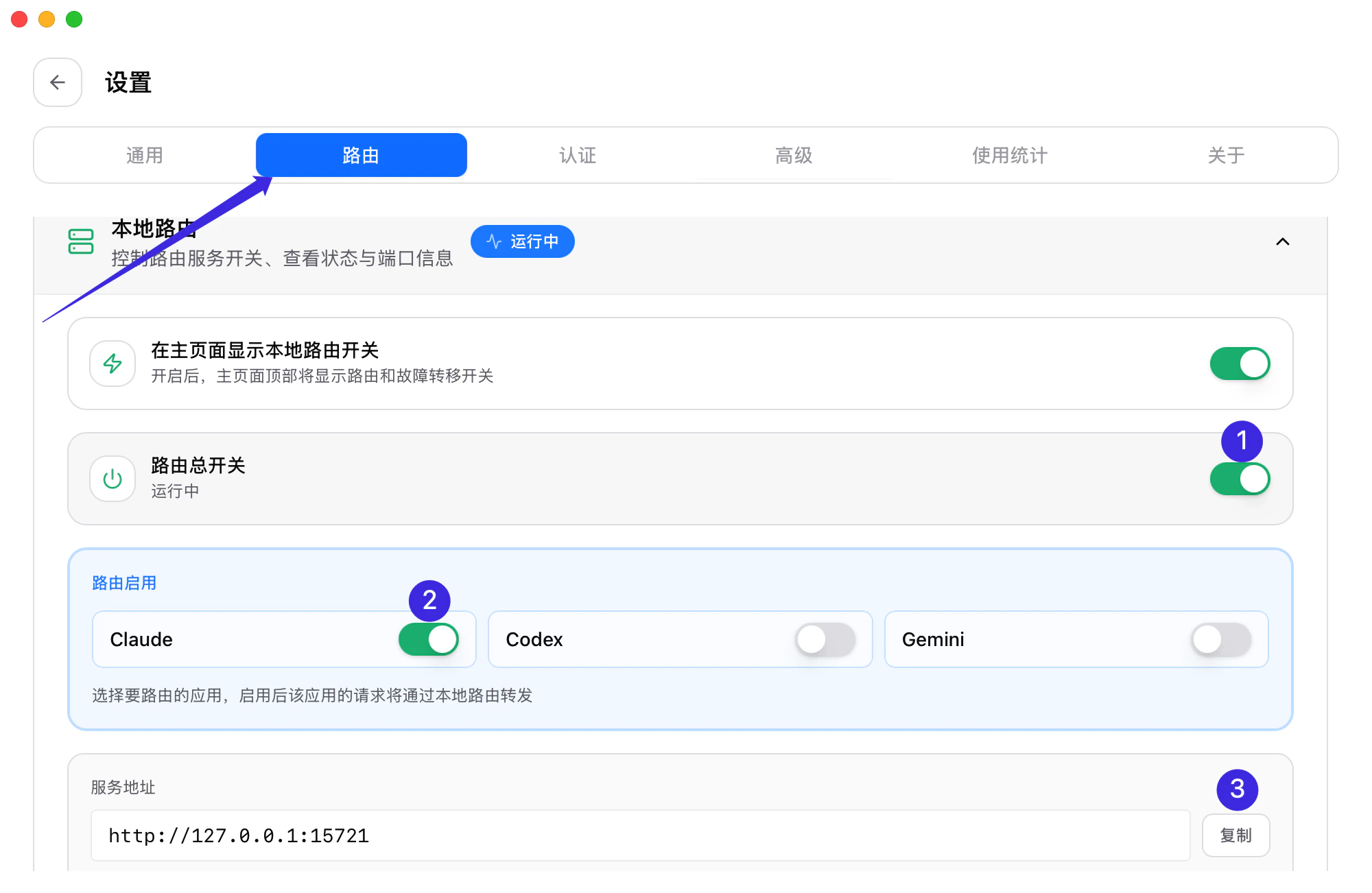
 Open **Routing** settings. Confirm that the highlighted main routing switch and **Claude** route switch are both on. Then copy the **Service address** shown below.
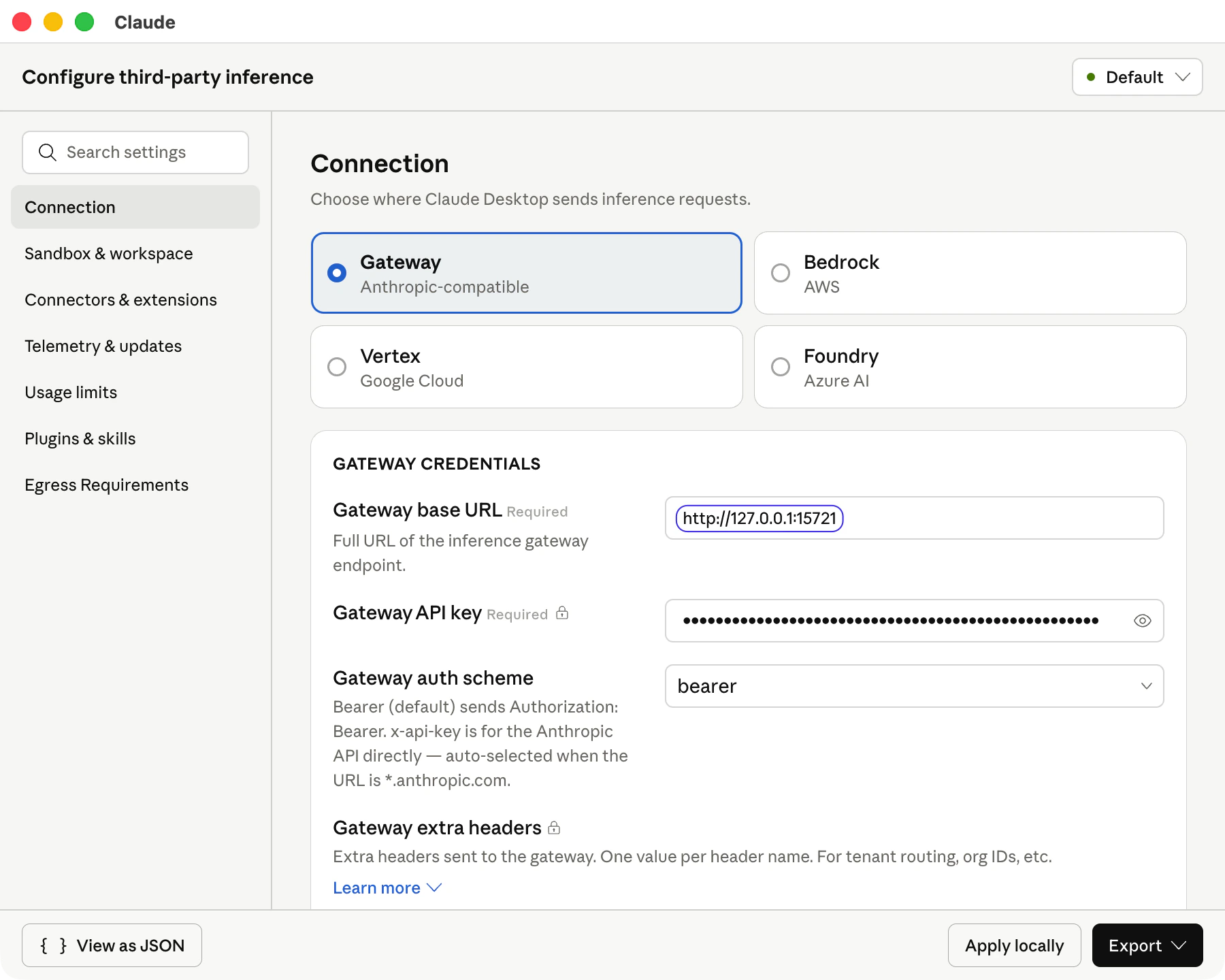
 Return to the Claude Desktop third-party inference settings window and select **Gateway**. Paste the CC Switch **Service address** into **Gateway base URL**, then enter your LLMEasy API Key.
Set **Gateway auth scheme** to `bearer`.
Return to the Claude Desktop third-party inference settings window and select **Gateway**. Paste the CC Switch **Service address** into **Gateway base URL**, then enter your LLMEasy API Key.
Set **Gateway auth scheme** to `bearer`.
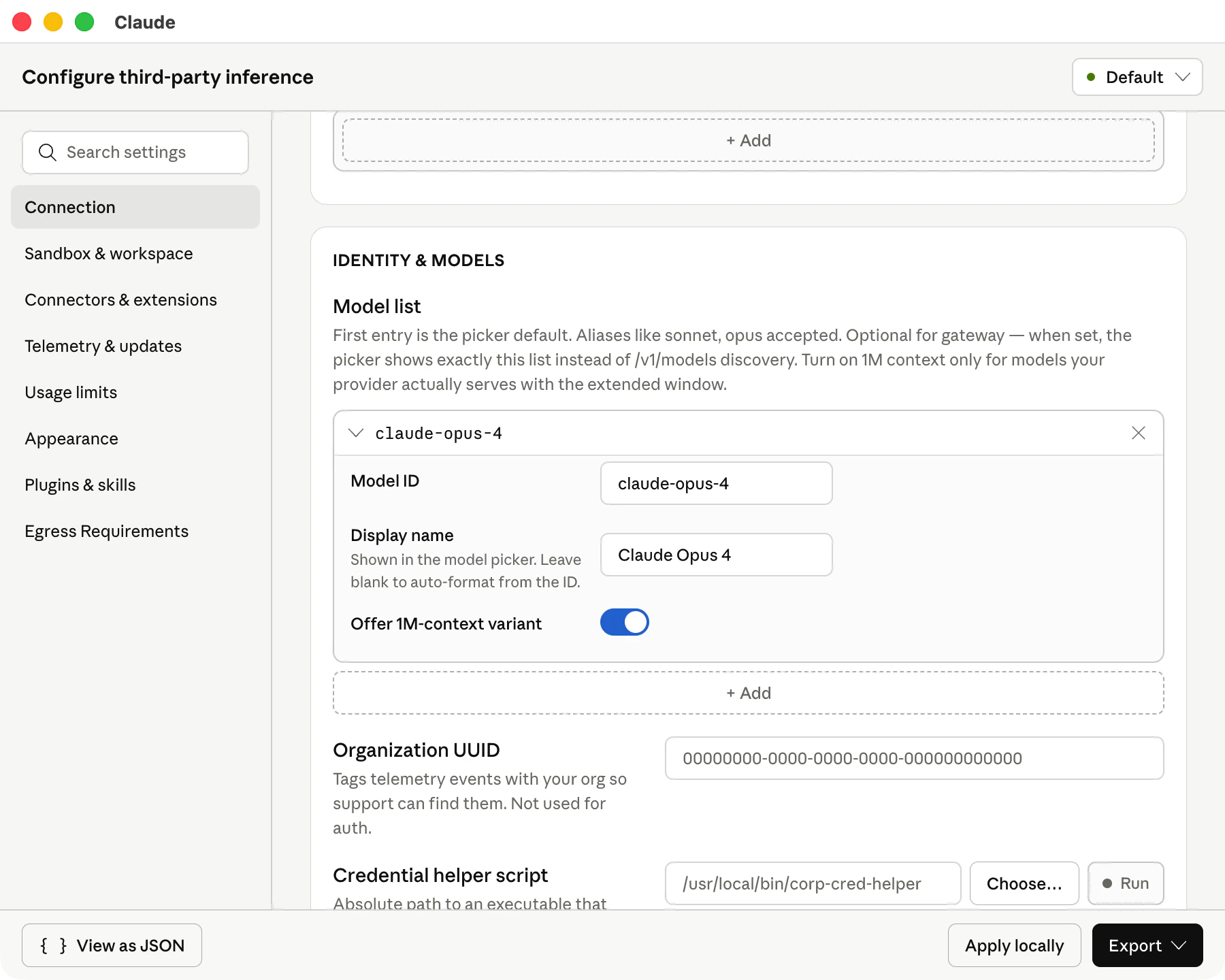
 Add the models you want to show in **Model list**. Each model entry needs both **Model ID** and **Display name**.
For example:
| Model ID | Display name |
| --------------- | --------------- |
| `claude-opus-4` | `Claude Opus 4` |
After filling in the list, click **Apply locally**.
Add the models you want to show in **Model list**. Each model entry needs both **Model ID** and **Display name**.
For example:
| Model ID | Display name |
| --------------- | --------------- |
| `claude-opus-4` | `Claude Opus 4` |
After filling in the list, click **Apply locally**.
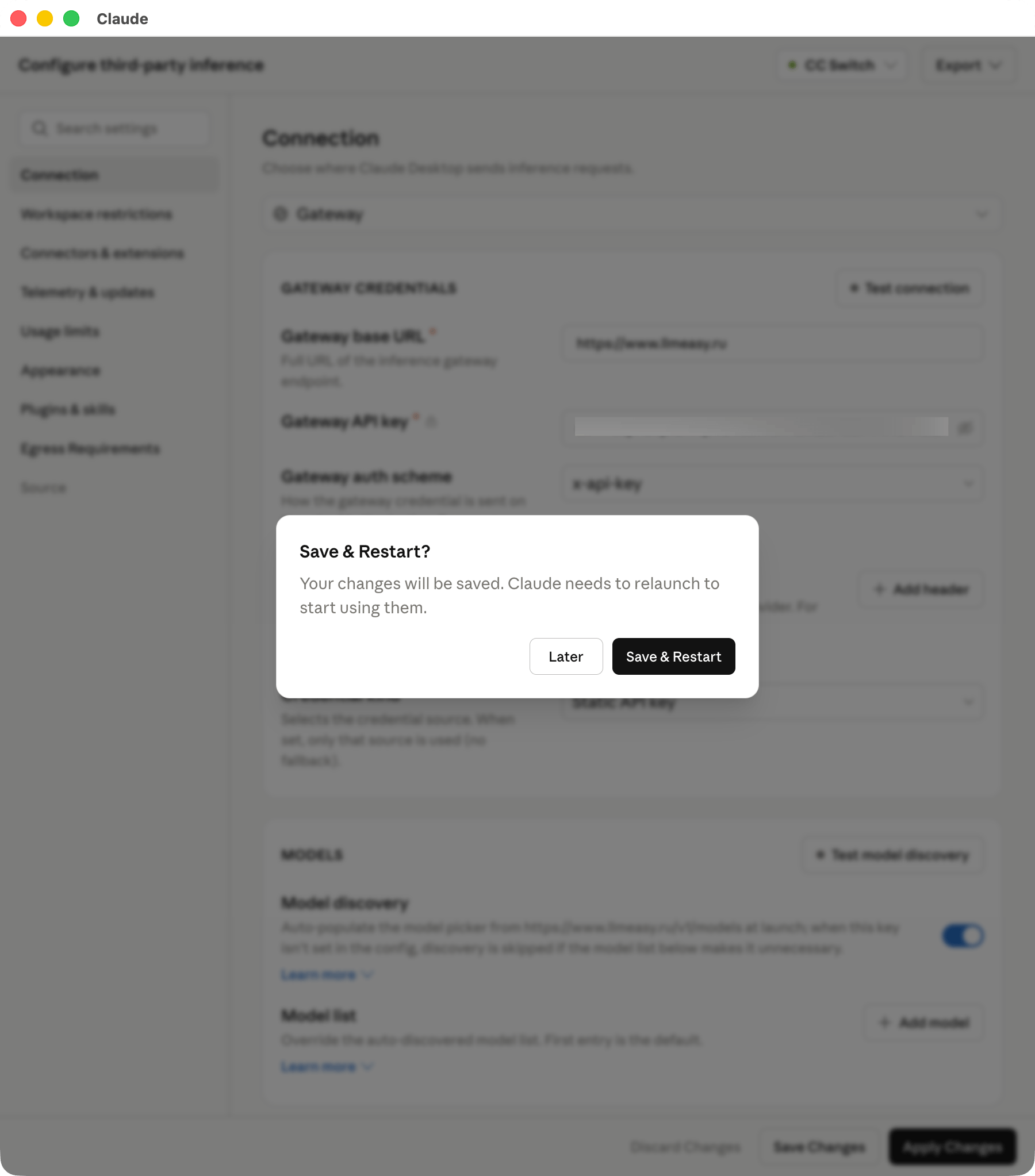
 After Claude writes the local configuration, it asks you to save and restart. Click **Save & Restart** so the new gateway configuration takes effect.
 After restarting, wait about 3 seconds for the sign-in choice to appear.
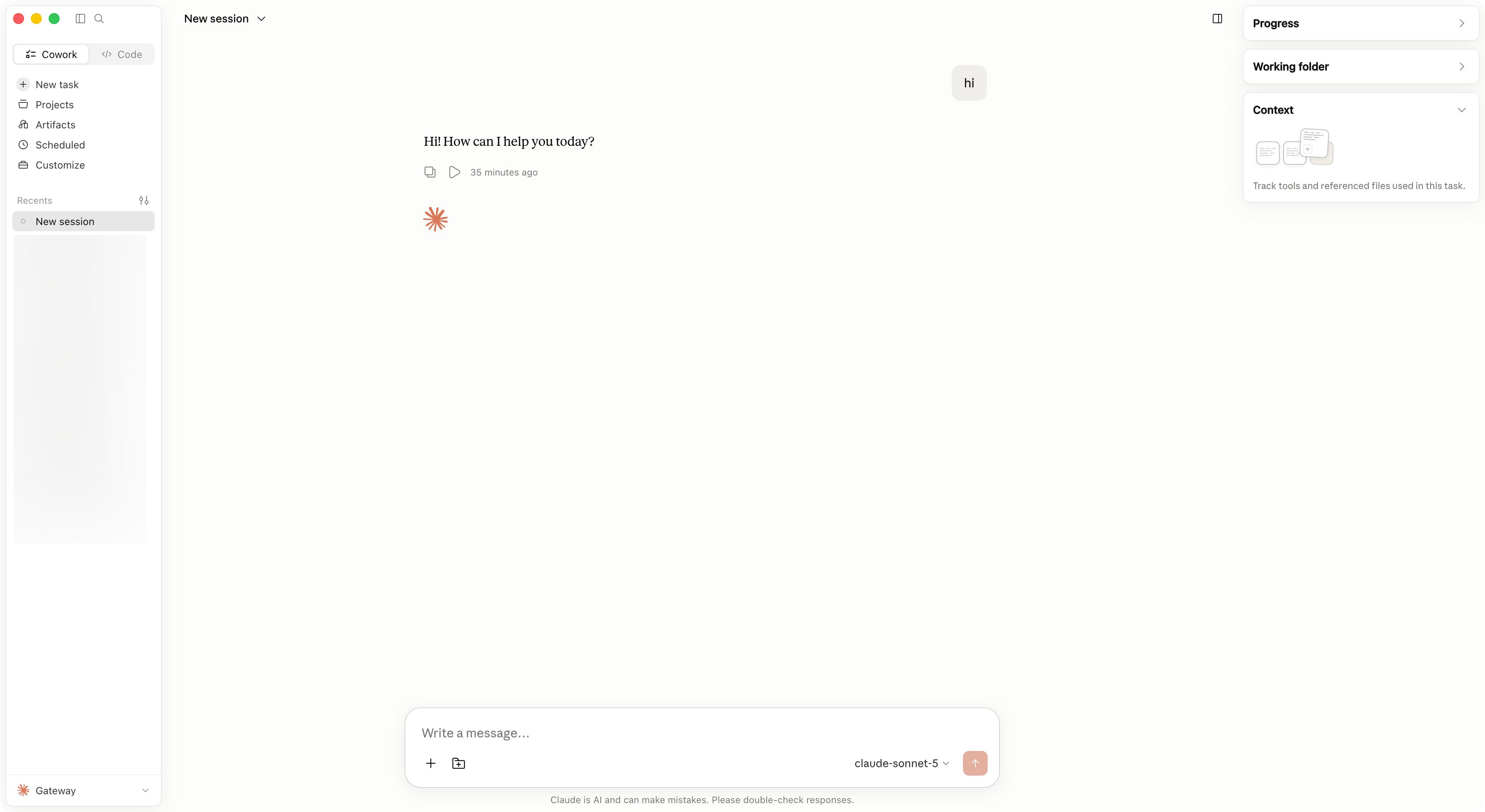
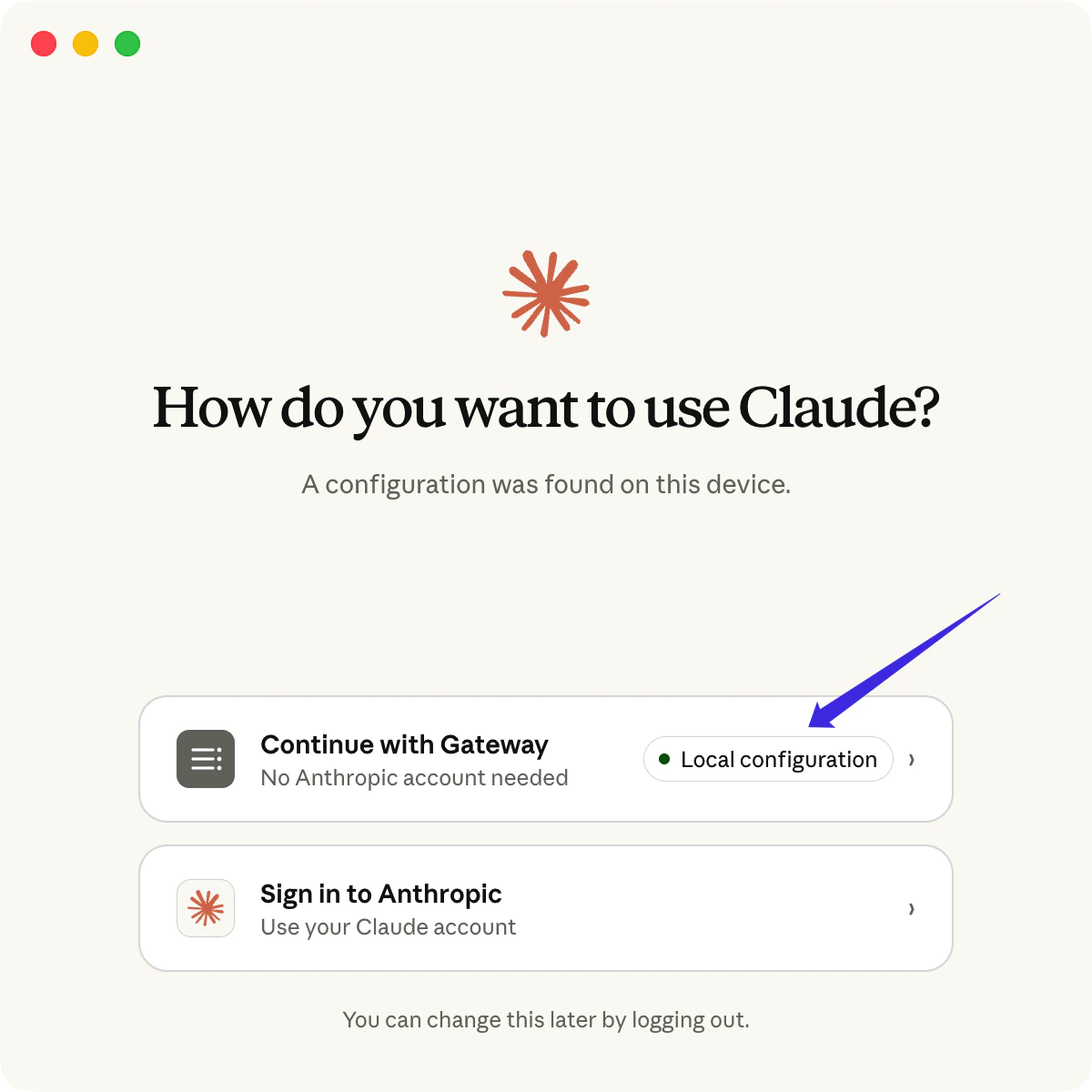 Choose **Continue with Gateway**. After Claude opens, **Cowork 3P | Gateway** appears in the lower-left corner and you can start using it.
 ## Troubleshooting
If you still see **Your provider setup needs a fix**, check these items first:
1. The LLMEasy provider in CC Switch is set as **In use**
2. **API Format** is set to **OpenAI Responses API**
3. **Model Mapping** explicitly selects GPT Key group models for Primary, Thinking, Haiku, Sonnet, and Opus
4. **CC Switch proxy**, the main routing switch, and the **Claude** route switch are all enabled
5. Claude Desktop **Gateway base URL** uses the local service address copied from CC Switch
6. **Model list** includes both **Model ID** and **Display name** for each model
## Troubleshooting
If you still see **Your provider setup needs a fix**, check these items first:
1. The LLMEasy provider in CC Switch is set as **In use**
2. **API Format** is set to **OpenAI Responses API**
3. **Model Mapping** explicitly selects GPT Key group models for Primary, Thinking, Haiku, Sonnet, and Opus
4. **CC Switch proxy**, the main routing switch, and the **Claude** route switch are all enabled
5. Claude Desktop **Gateway base URL** uses the local service address copied from CC Switch
6. **Model list** includes both **Model ID** and **Display name** for each model