> ## Documentation Index
> Fetch the complete documentation index at: https://docs.llmeasy.ru/llms.txt
> Use this file to discover all available pages before exploring further.
# Why does Claude Desktop show SSL certificate has expired or keep loading?
> Fix Claude Desktop no-response and SSL certificate has expired errors with CC Switch local routing and Needs model mapping.
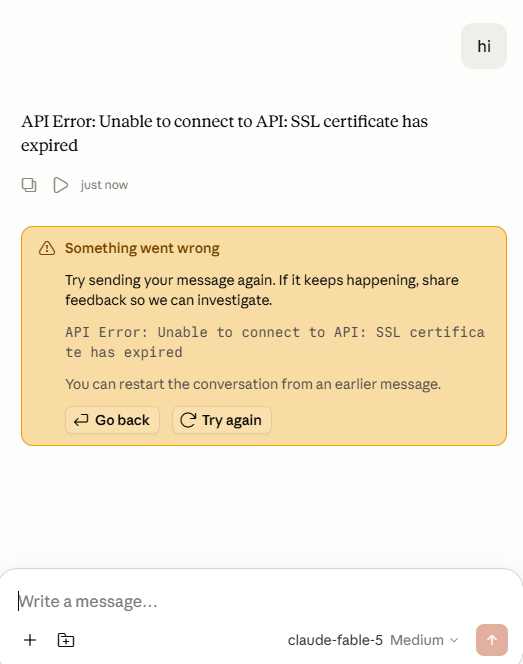
If Claude Desktop is already connected to the API but does not return a normal response, or shows an error like this:
```text theme={null}
API Error: Unable to connect to API: SSL certificate has expired
```
This does not always mean the API Key is invalid, and it does not always mean the server certificate has actually expired. Based on user reports, Claude Desktop may fail when it connects to a third-party API Gateway directly in proxy networks, restricted networks, or environments with strict certificate inspection.
Use CC Switch Claude Desktop local routing and enable **Needs model mapping**. Claude Desktop will connect to a local address first, and CC Switch will forward the request to `LLMEasy`.
 ## When to use this
* Claude Desktop is connected to the API, but messages do not return a response.
* The page shows `SSL certificate has expired`.
* The Chat page appears to start responding, but stays in a loading state.
* You are using a proxy network, restricted network, company network, or certificate inspection environment.
* The same API Key works in other tools.
## Fix
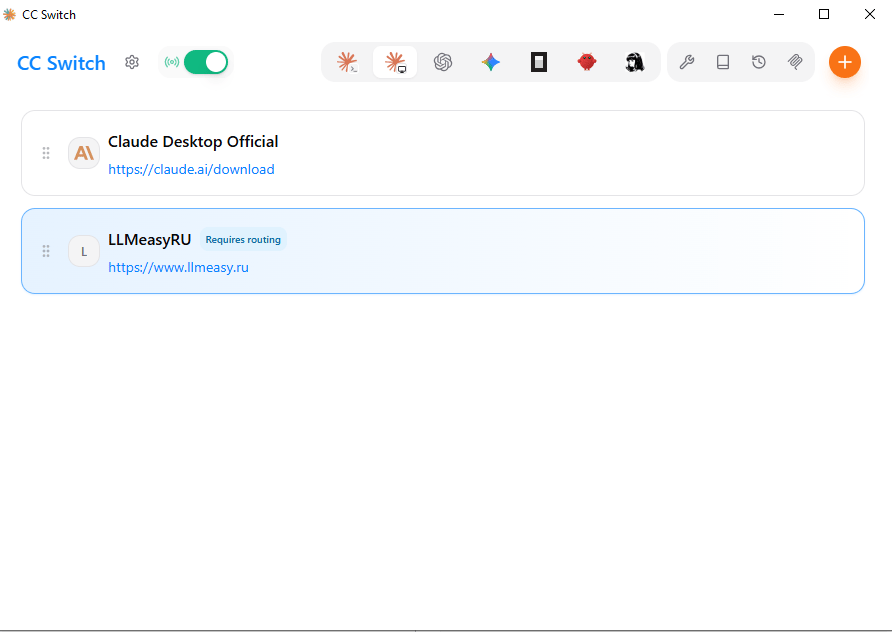
Open CC Switch, confirm that your `LLMEasy` provider is selected, and enable the top routing / proxy toggle.
## When to use this
* Claude Desktop is connected to the API, but messages do not return a response.
* The page shows `SSL certificate has expired`.
* The Chat page appears to start responding, but stays in a loading state.
* You are using a proxy network, restricted network, company network, or certificate inspection environment.
* The same API Key works in other tools.
## Fix
Open CC Switch, confirm that your `LLMEasy` provider is selected, and enable the top routing / proxy toggle.
 Open the provider edit page and enable **Needs model mapping**.
This lets CC Switch map the three model roles accepted by Claude Desktop to the actual models available in `LLMEasy`:
* `claude-sonnet-*`
* `claude-opus-*`
* `claude-haiku-*`
Open the provider edit page and enable **Needs model mapping**.
This lets CC Switch map the three model roles accepted by Claude Desktop to the actual models available in `LLMEasy`:
* `claude-sonnet-*`
* `claude-opus-*`
* `claude-haiku-*`
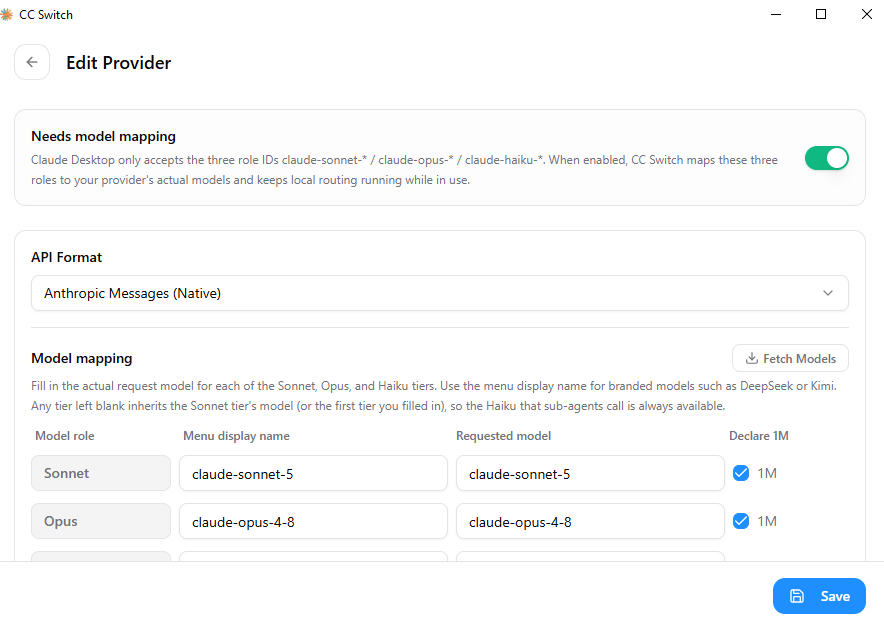 In **API Format**, choose:
```text theme={null}
Anthropic Messages (Native)
```
Fill in **Model mapping**. Use the currently available model IDs from the model plaza.
| Model role | Menu display name | Requested model |
| ---------- | ------------------ | --------------------------- |
| Sonnet | `claude-sonnet-5` | `claude-sonnet-5` |
| Opus | `claude-opus-4-8` | `claude-opus-4-8` |
| Haiku | `claude-haiku-4-5` | `claude-haiku-4-5-20251001` |
If the model supports a 1M context window, enable **Declare 1M**.
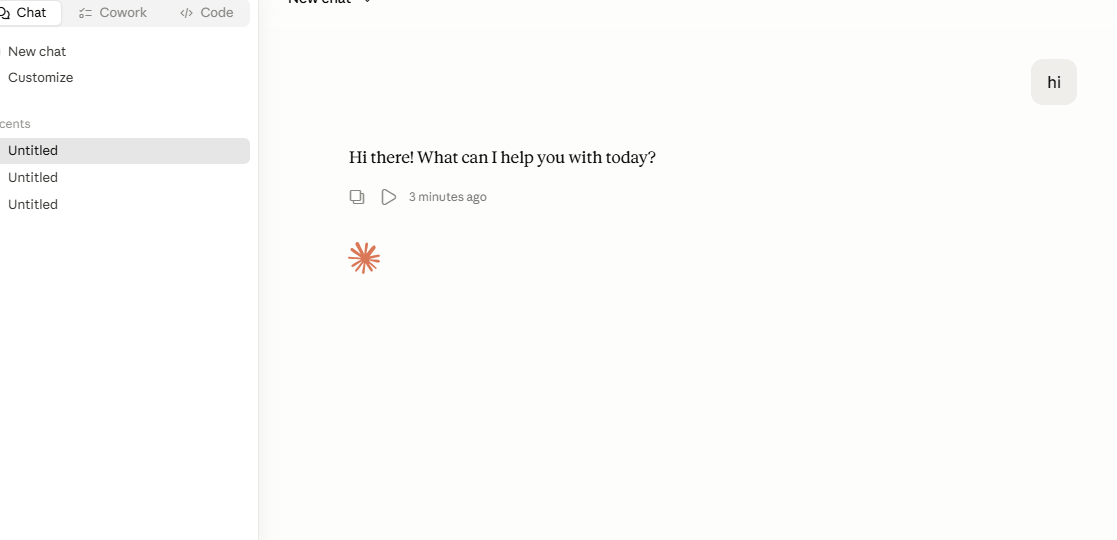
Click **Save**. Return to Claude Desktop, select the model again, and send a test message.
When the setup is correct, Claude Desktop calls `LLMEasy` through the CC Switch local route. This usually fixes the SSL error or no-response issue.
In **API Format**, choose:
```text theme={null}
Anthropic Messages (Native)
```
Fill in **Model mapping**. Use the currently available model IDs from the model plaza.
| Model role | Menu display name | Requested model |
| ---------- | ------------------ | --------------------------- |
| Sonnet | `claude-sonnet-5` | `claude-sonnet-5` |
| Opus | `claude-opus-4-8` | `claude-opus-4-8` |
| Haiku | `claude-haiku-4-5` | `claude-haiku-4-5-20251001` |
If the model supports a 1M context window, enable **Declare 1M**.
Click **Save**. Return to Claude Desktop, select the model again, and send a test message.
When the setup is correct, Claude Desktop calls `LLMEasy` through the CC Switch local route. This usually fixes the SSL error or no-response issue.
 ## Notes
* Do not copy model names from old screenshots blindly. Use the currently available model IDs from the model plaza.
* Store the API Key in the CC Switch provider. Do not put it in public docs, screenshots, or chat logs.
* If it still fails, check the top CC Switch routing toggle, active provider, complete Model mapping, and whether a local firewall blocks `127.0.0.1`.
## Related docs
* [Claude Desktop setup guide](/en/faq/claude-desktop-llmeasy-api)
* [How can I use Codex and other third-party models in Claude Desktop?](/en/faq/claude-desktop/third-party-models)
## Notes
* Do not copy model names from old screenshots blindly. Use the currently available model IDs from the model plaza.
* Store the API Key in the CC Switch provider. Do not put it in public docs, screenshots, or chat logs.
* If it still fails, check the top CC Switch routing toggle, active provider, complete Model mapping, and whether a local firewall blocks `127.0.0.1`.
## Related docs
* [Claude Desktop setup guide](/en/faq/claude-desktop-llmeasy-api)
* [How can I use Codex and other third-party models in Claude Desktop?](/en/faq/claude-desktop/third-party-models)