> ## Documentation Index
> Fetch the complete documentation index at: https://docs.llmeasy.ru/llms.txt
> Use this file to discover all available pages before exploring further.
# Connect Cursor to LLMEasy with a custom model
> Connect LLMEasy to Cursor with GPT Key group model IDs.
When connecting LLMEasy to Cursor, use the OpenAI-compatible endpoint. External tools use the GPT Key group, so copy the current model ID from the model plaza.
Cursor only lets users on a paid advanced tier or higher configure custom models. If your account or client version does not show custom model, API Key, or Base URL options, check your Cursor plan and client version first.
**Known issue:** **Override OpenAI Base URL** is a global setting. When enabled, it affects all API keys configured in Cursor, including Anthropic and GPT keys used by Cursor's built-in models. Cursor's official community has confirmed this behavior: setting a Base URL affects all API keys and models ([community thread](https://forum.cursor.com/t/cursor-models-fail-when-using-byok-openai-key-with-overridden-base-url-glm-4-7/147218)).
If Cursor's built-in Claude / GPT models stop working after you enable **Override OpenAI Base URL**, turn **Override OpenAI Base URL** off when you are not using LLMEasy. Cursor currently does not support a different Base URL per model; that capability is still tracked as a feature request ([feature request](https://forum.cursor.com/t/custom-base-urls-for-each-custom-model/147219)).
## Prerequisites
* Cursor installed ([download Cursor](https://www.cursor.com))
* LLMEasy API Key (register here)
* The API Key belongs to the **GPT Key group**, and you plan to select a model from the same group
## Setup
In Cursor, click **Settings** in the lower-left corner, then go to **Models**. Scroll down to **API Keys**.
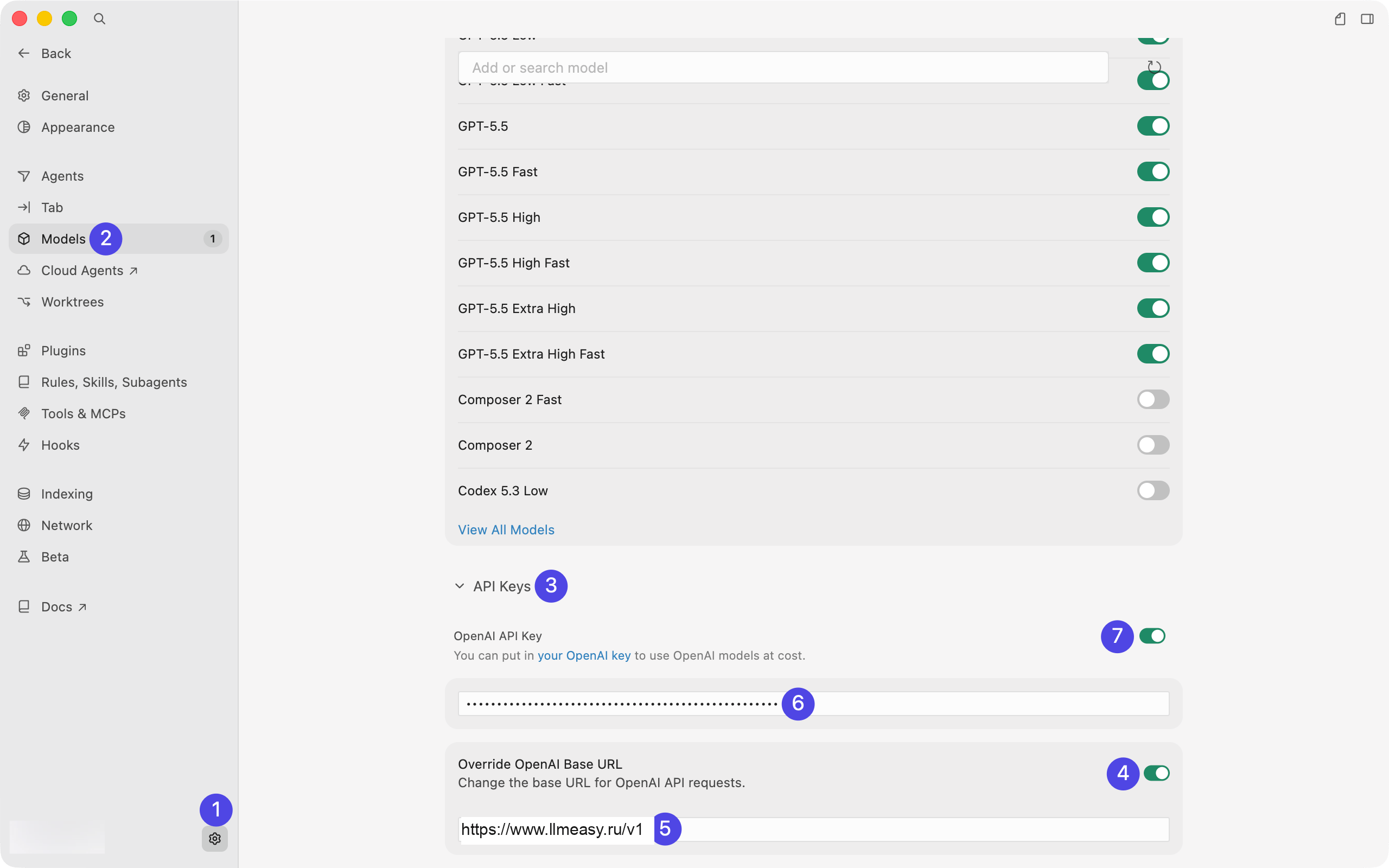 In **API Keys**, configure the fields in this order:
1. Enable **Override OpenAI Base URL**
2. Enter `https://www.llmeasy.ru/v1` in the Base URL field
3. Paste your LLMEasy API Key into **OpenAI API Key**
4. After the URL and key are filled in, enable the **OpenAI API Key** toggle
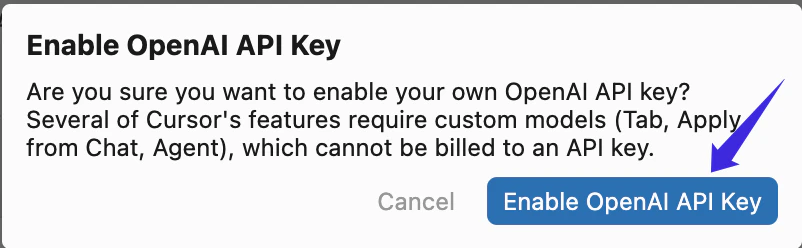
Enter the key before turning on the toggle. This makes Cursor show the authentication confirmation dialog.
In the confirmation dialog, click **Enable OpenAI API Key**.
In **API Keys**, configure the fields in this order:
1. Enable **Override OpenAI Base URL**
2. Enter `https://www.llmeasy.ru/v1` in the Base URL field
3. Paste your LLMEasy API Key into **OpenAI API Key**
4. After the URL and key are filled in, enable the **OpenAI API Key** toggle
Enter the key before turning on the toggle. This makes Cursor show the authentication confirmation dialog.
In the confirmation dialog, click **Enable OpenAI API Key**.
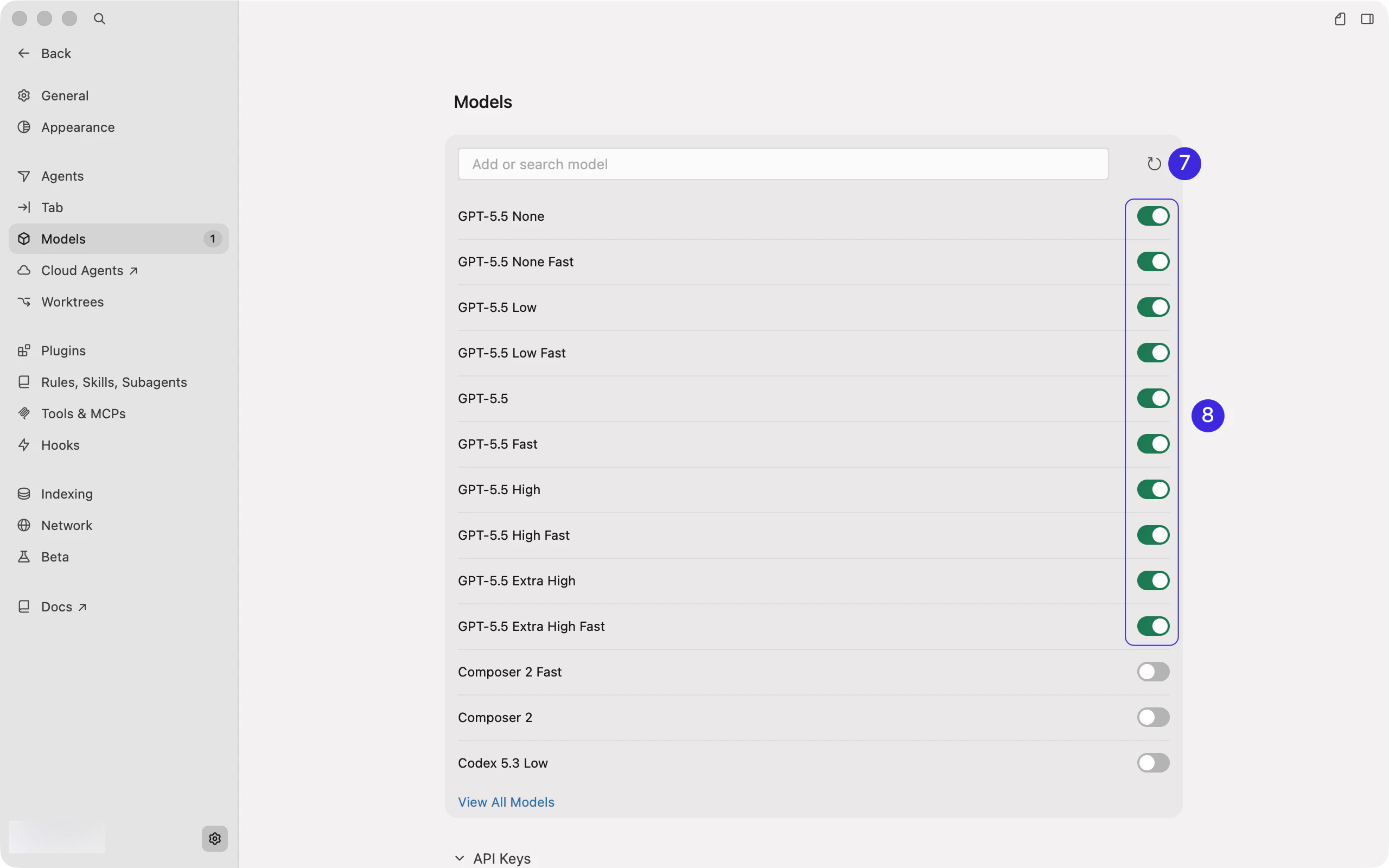
 Back in **Models**, click the refresh button on the right before selecting a model. Wait until the model list finishes refreshing.
Only select models that belong to the same LLMEasy group as your API Key. When using a GPT Key group API Key, choose a model ID from the **GPT Key group** in the model plaza, then turn on the toggle for that model.
Back in **Models**, click the refresh button on the right before selecting a model. Wait until the model list finishes refreshing.
Only select models that belong to the same LLMEasy group as your API Key. When using a GPT Key group API Key, choose a model ID from the **GPT Key group** in the model plaza, then turn on the toggle for that model.
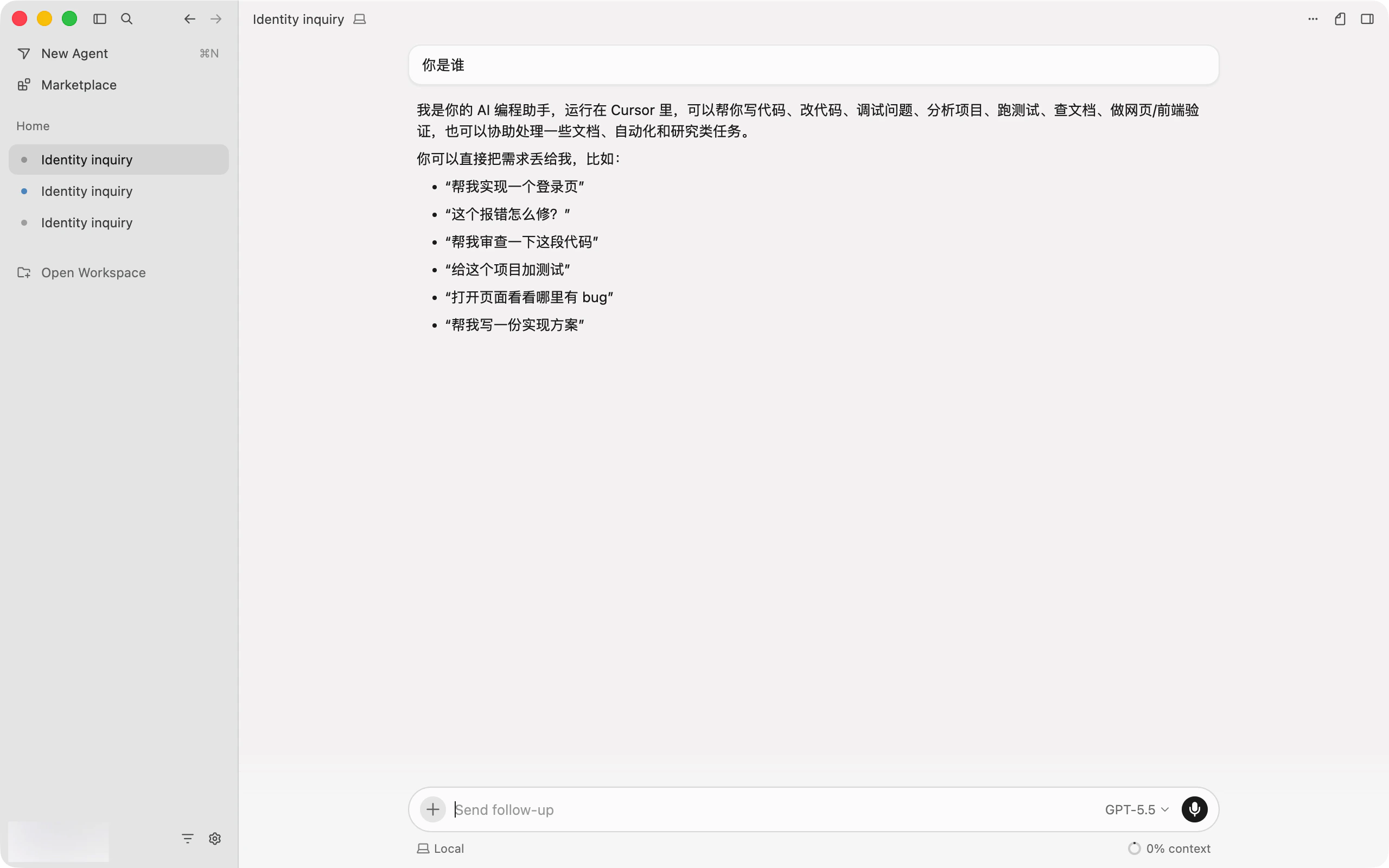
 After setup, return to the Cursor chat screen and open the model picker below the input box. If **Auto** is enabled, turn **Auto** off first.
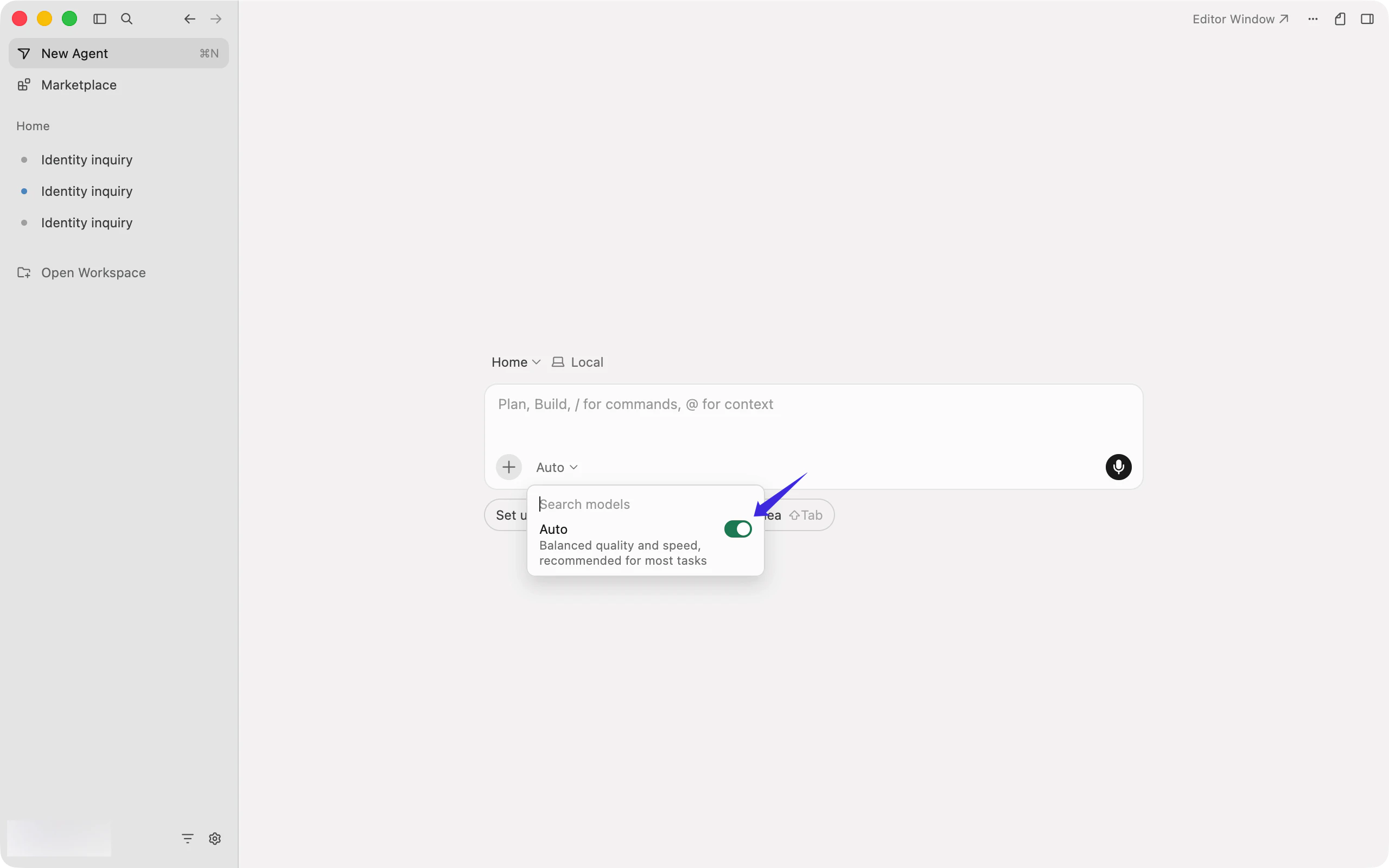 Choose the GPT Key group model you enabled, then start chatting.
 ## Related FAQ
* [How to configure a custom OpenAI API Key and Base URL in Cursor](/en/faq/cursor/custom-openai-api)
* [Cursor Rules, AGENTS.md, and .cursorignore explained](/en/faq/cursor/rules-agents-cursorignore)
* [How to configure MCP in Cursor](/en/faq/cursor/mcp)
* [Claude Code vs Cursor for local development](/en/faq/claude-code/claude-code-vs-cursor)
* [OpenAI-compatible API vs Anthropic-compatible API](/en/faq/concepts/openai-compatible-vs-anthropic-compatible)
## Notes
* Do not use Claude Key group model IDs in the Codex / OpenAI-compatible flow
* Do not keep using hardcoded Claude model names; use a current GPT Key group model ID from the model plaza
## Related FAQ
* [How to configure a custom OpenAI API Key and Base URL in Cursor](/en/faq/cursor/custom-openai-api)
* [Cursor Rules, AGENTS.md, and .cursorignore explained](/en/faq/cursor/rules-agents-cursorignore)
* [How to configure MCP in Cursor](/en/faq/cursor/mcp)
* [Claude Code vs Cursor for local development](/en/faq/claude-code/claude-code-vs-cursor)
* [OpenAI-compatible API vs Anthropic-compatible API](/en/faq/concepts/openai-compatible-vs-anthropic-compatible)
## Notes
* Do not use Claude Key group model IDs in the Codex / OpenAI-compatible flow
* Do not keep using hardcoded Claude model names; use a current GPT Key group model ID from the model plaza